Configure Background
Setting background functions allows us to send new information as we get notified. This helps to resend that information to you through your webhook previously configured in the ROOK Portal.
Background sync of data for iOS
To configure background upload you need to follow the steps bellow:
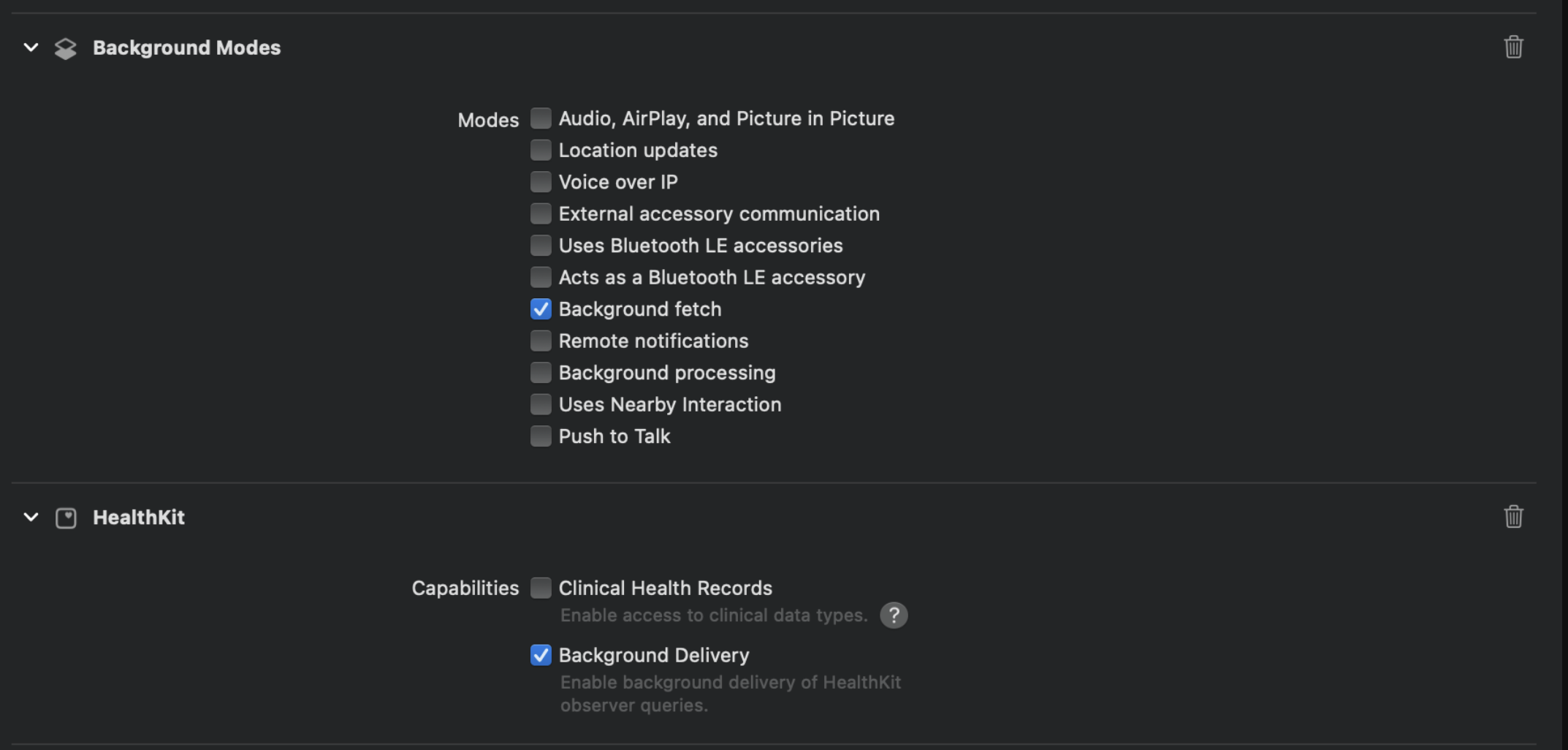
- Add health kit to your project and enable background delivery.
- Add Background modes and enable Background fetch.
In the app delegate of your app add the setBackListeners method in didFinishLaunchingWithOptions function.
#import "AppDelegate.h"
#import "RookSDK/RookSDK-Swift.h"
#import <React/RCTBundleURLProvider.h>

@implementation AppDelegate

- (BOOL)application:(UIApplication *)application didFinishLaunchingWithOptions:(NSDictionary *)launchOptions
{
  self.moduleName = @"RookSdkAppleHealthExample";
  // You can add your custom initial props in the dictionary below.
  // They will be passed down to the ViewController used by React Native.
  self.initialProps = @{};
  [[RookBackGroundSync shared] setBackListeners];

  return [super application:application didFinishLaunchingWithOptions:launchOptions];
}

- (NSURL *)sourceURLForBridge:(RCTBridge *)bridge
{
#if DEBUG
  return [[RCTBundleURLProvider sharedSettings] jsBundleURLForBundleRoot:@"index"];
#else
  return [[NSBundle mainBundle] URLForResource:@"main" withExtension:@"jsbundle"];
#endif
}

@end
Background sync of data for Android
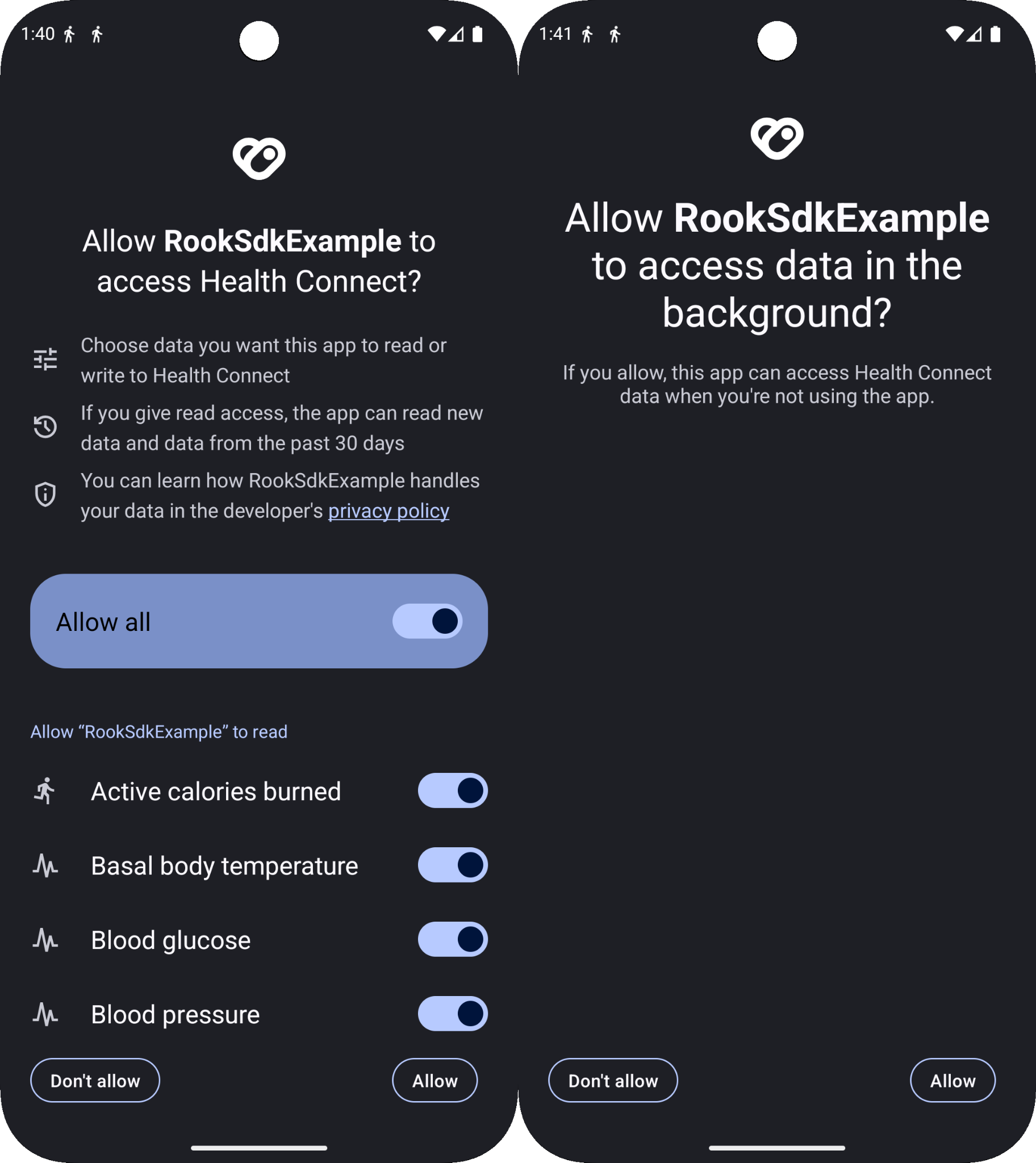
To enable background sync in Android, the user must grant permission to extract data in the background. You only need to call useRookPermissions.requestHealthConnectPermissions(), and a prompt like this will appear.
Customizing the foreground service notification
The following customizing is intended for accelerometer-based steps extraction in order to use your own resources you need to reference them in the AndroidManifest.xml file:
<manifest xmlns:android="http://schemas.android.com/apk/res/android">
    <application>
        <meta-data
            android:name="io.tryrook.service.notification.SYNC_ICON"
            android:resource="@drawable/my_custom_icon"/>

        <meta-data
            android:name="io.tryrook.service.notification.SYNC_TITLE"
            android:resource="@string/my_custom_title"/>

        <meta-data
            android:name="io.tryrook.service.notification.SYNC_CONTENT"
            android:resource="@string/my_custom_content"/>
    </application>
</manifest>
Starting on Android 13 (SDK 33) this notification can be dismissed without finishing the service associated with it, then the service will be displayed in the active apps section (This may vary depending on device brand).
Background sync of data for Samsung healh
For Samsung Health, no additional configuration is required. Simply set the enableBackgroundSync flag to true to allow background data synchronization.
Start the automatic the background sync
Make sure that enableBackgroundSync in RookSyncGate is set to true, and the data will start flowing automatically.
import * as React from "react";
import { RookSyncGate } from "react-native-rook-sdk";

export default function App() {
  return (
    <RookSyncGate
      environment="sandbox | production"
      clientUUID="YOUR_CLIENT_UUID"
      secret="YOUR_SECRET_WORD"
      bundleId = {string | undefined}
      packageName = {string | undefined}
      enableLogs={true | false | undefined}
      enableBackgroundSync={true | false}
    >
      <YOUR-COMPONENTS />
    </RookSyncGate>
  );
}
If you need to manually control when the background sync starts or stops, refer to the following hooks for the appropriate functions: useRookAppleHealth, useRookHealthConnect, and useRookSamsung (for samsung health).