Rook SDK
This SDK enables apps to extract and upload data from Apple Health and Health Connect. With this SDK, you will be able to extract and upload data. For more information, check out our demo app.
The Native Modules and TurboModule implementations use the same npm package name.
| React Native project | Install |
|---|---|
| React Native 0.73 with Native Modules | react-native-rook-sdk@^4 |
| React Native 0.83 with the New Architecture and TurboModules | react-native-rook-sdk@^5 |
The hooks documented below are shared unless a section explicitly identifies a version. See Getting Started for the selection criteria or the 4.x to 5.x migration guide before changing major versions.
Installation
Use the toolchain required by the selected React Native and ROOK SDK major. The reference integrations are React Native 0.73 with ROOK 4.x and React Native 0.83 with ROOK 5.x. The minimum supported iOS version is 13.0; the current 5.x development repository uses JDK 17 and Xcode 26.0.
npm — Native Modules (4.x)
npm install react-native-rook-sdk@^4
npm — TurboModules (5.x)
npm install react-native-rook-sdk@^5
Configuration
Add your client uuid in order to be authorized, follow the next example, add at the top level of your tree components the RookSyncGate, password refers to the secret key.
import { RookSyncGate } from "react-native-rook-sdk";

<RookSyncGate
  environment="sandbox | production"
  clientUUID="YOUR_CLIENT_UUID"
  secret="YOUR_SECRET_WORD"
  bundleId = {string | undefined}
  packageName = {string | undefined}
  enableLogs={true | false | undefined}
  enableBackgroundSync={true | false}
>
  <YOUR_COMPONENTS />
</RookSyncGate>;
SDK Configuration Parameters
The enableLogs property determines whether local logs for specific SDK operations are displayed in the console. This is particularly useful for debugging during the development phase.
Regarding synchronization, we recommend prompting your users to confirm if they wish to enable automatic background syncing. Once the user provides their consent, you should persist this preference in local storage and set the enableBackgroundSync flag conditionally based on that value.
The enableEventsBackgroundSync property specifically controls whether activity events are included or excluded during the background synchronization process.
Finally, providing a bundleId or packageName is optional, as the SDK is designed to detect these values automatically. However, if you need to support a custom identifier, please ensure the value entered here exactly matches the one configured in the ROOK Developer Portal.
iOS Configuration
Then we need to add Apple Health Kit Framework to our project in order to that please:
- Open your project in Xcode.
- Click on your project file in the Project Navigator.
- Select your target and then click on the "Build Phases" tab.
- Click on the "+" button under the "Link Binary With Libraries" section and select "HealthKit.framework" from the list.
- Select your target and then click on the "Signing Capabilities" tab.
- Click on "Add Capability" and search for "HealthKit"
Additionally add the following to the info.plist
<key>NSHealthShareUsageDescription</key>
<string>This app requires access to your health and fitness data in order to track your workouts and activity levels.</string>
<key>NSHealthUpdateUsageDescription</key>
<string>This app requires permission to write healt data to HealthKit.</string>
Android Configuration
Then we need to configure the android project. open the android project inside android studio. We need to modify the AndroidManifest.xml file in order to access to the Health connection records.
We need to add inside your activity tag an intent filter to open Health Connect APP and your AndroidManifest.xml file should look like this
<manifest xmlns:android="http://schemas.android.com/apk/res/android">

    ...

    <application
      ...>
      <activity
        ...>
        <intent-filter>
            ...
        </intent-filter>

        <!-- For supported versions through Android 13, create an activity to show the rationale
        of Health Connect permissions once users click the privacy policy link. -->
          <intent-filter>
              <action android:name="androidx.health.ACTION_SHOW_PERMISSIONS_RATIONALE" />
          </intent-filter>
      </activity>

       <!-- For versions starting Android 14, create an activity alias to show the rationale
     of Health Connect permissions once users click the privacy policy link. -->
      <activity-alias
        android:name="ViewPermissionUsageActivity"
        android:exported="true"
        android:permission="android.permission.START_VIEW_PERMISSION_USAGE"
        android:targetActivity=".MainActivity">

        <intent-filter>
          <action android:name="android.intent.action.VIEW_PERMISSION_USAGE" />
          <category android:name="android.intent.category.HEALTH_PERMISSIONS" />
        </intent-filter>
      </activity-alias>
    </application>
</manifest>
Included permissions for Android
This SDK will use the following permissions, there is no need to declare them in your manifest as the rook-sdk already declares them in its own manifest:
<uses-permission android:name="android.permission.ACTIVITY_RECOGNITION"/>
<uses-permission android:name="android.permission.FOREGROUND_SERVICE"/>
<uses-permission android:name="android.permission.FOREGROUND_SERVICE_HEALTH"/>
<uses-permission android:name="android.permission.POST_NOTIFICATIONS"/>
<uses-permission android:name="android.permission.RECEIVE_BOOT_COMPLETED"/>

<uses-permission android:name="android.permission.health.READ_HEALTH_DATA_IN_BACKGROUND"/>
<uses-permission android:name="android.permission.health.READ_HEALTH_DATA_HISTORY"/>

<uses-permission android:name="android.permission.health.READ_SLEEP"/>
<uses-permission android:name="android.permission.health.READ_STEPS"/>
<uses-permission android:name="android.permission.health.READ_DISTANCE"/>
<uses-permission android:name="android.permission.health.READ_FLOORS_CLIMBED"/>
<uses-permission android:name="android.permission.health.READ_ELEVATION_GAINED"/>
<uses-permission android:name="android.permission.health.READ_OXYGEN_SATURATION"/>
<uses-permission android:name="android.permission.health.READ_VO2_MAX"/>
<uses-permission android:name="android.permission.health.READ_TOTAL_CALORIES_BURNED"/>
<uses-permission android:name="android.permission.health.READ_ACTIVE_CALORIES_BURNED"/>
<uses-permission android:name="android.permission.health.READ_HEART_RATE"/>
<uses-permission android:name="android.permission.health.READ_RESTING_HEART_RATE"/>
<uses-permission android:name="android.permission.health.READ_HEART_RATE_VARIABILITY"/>
<uses-permission android:name="android.permission.health.READ_EXERCISE"/>
<uses-permission android:name="android.permission.health.READ_SPEED"/>
<uses-permission android:name="android.permission.health.READ_WEIGHT"/>
<uses-permission android:name="android.permission.health.READ_HEIGHT"/>
<uses-permission android:name="android.permission.health.READ_BLOOD_GLUCOSE"/>
<uses-permission android:name="android.permission.health.READ_BLOOD_PRESSURE"/>
<uses-permission android:name="android.permission.health.READ_HYDRATION"/>
<uses-permission android:name="android.permission.health.READ_BODY_TEMPERATURE"/>
<uses-permission android:name="android.permission.health.READ_RESPIRATORY_RATE"/>
<uses-permission android:name="android.permission.health.READ_NUTRITION"/>
<uses-permission android:name="android.permission.health.READ_MENSTRUATION"/>
<uses-permission android:name="android.permission.health.READ_POWER"/>
<uses-permission android:name="android.permission.health.READ_BASAL_BODY_TEMPERATURE"/>
<uses-permission android:name="android.permission.health.READ_BODY_FAT"/>
<uses-permission android:name="android.permission.health.READ_LEAN_BODY_MASS"/>
<uses-permission android:name="android.permission.health.READ_BODY_WATER_MASS"/>
<uses-permission android:name="android.permission.health.READ_BONE_MASS"/>
Google may require you to provide an explanation about the FOREGROUND_SERVICE/FOREGROUND_SERVICE_HEALTH permissions.
These permissions are used by our Background Steps feature to track steps and upload it
to ROOK servers. We recommend asking users for permission before enabling these features. Google may also require a
video proof of a screen where a user can turn on or off these features.
Request data access for Android
When you are developing with the Health Connect SDK, data access is unrestricted. To have data access when your app is launched on the Play Store, you must complete the Play Console Health apps declaration. More information can be found here.
You will se a list like below of the permissions your app uses, you will need to provide a description on how your app uses the data of each permission.
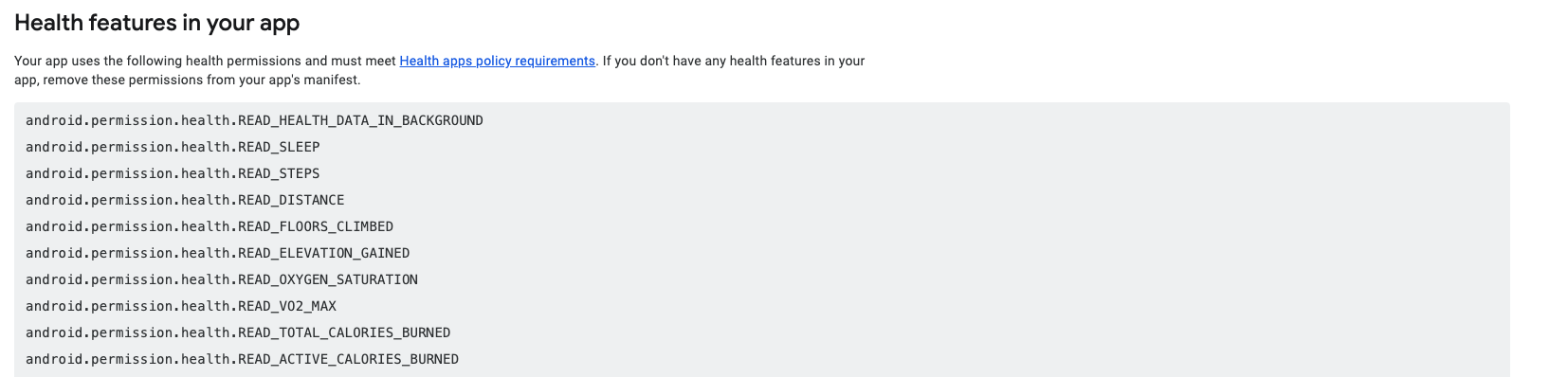
If you don't want access to a particular data type of Health Connect you can remove it.
Obfuscation for Android
If you are using obfuscation consider the following:
In your gradle.properties (Project level) add the following to disable R8 full mode:
android.enableR8.fullMode=false
If you want to enable full mode add the following rules to proguard-rules.pro:
# Keep generic signature of Call, Response (R8 full mode strips signatures from non-kept items).
-keep,allowobfuscation,allowshrinking interface retrofit2.Call
-keep,allowobfuscation,allowshrinking class retrofit2.Response

# With R8 full mode generic signatures are stripped for classes that are not
# kept. Suspend functions are wrapped in continuations where the type argument
# is used.
-keep,allowobfuscation,allowshrinking class kotlin.cor  outines.Continuation
Usage
useRookConfiguration
The useRookConfiguration hook provides comprehensive configuration management for the ROOK SDK, offering methods to manage user settings, synchronization, and data sources across iOS and Android platforms.
import { useRookConfiguration, SDKDataSource } from 'react-native-rook-sdk'

enum SDKDataSource {
  HEALTH_CONNECT = 'HEALTH_CONNECT',
  SAMSUNG_HEALTH = 'SAMSUNG_HEALTH',
  APPLE_HEALTH = 'APPLE_HEALTH',
}

const useRookConfiguration = () => {
  ready: boolean;
  getUserID: () => Promise<string>;
  updateUserID: (userID: string) => Promise<boolean>;
  syncUserTimeZone: () => Promise<boolean>;
  removeUserFromRook: (sources: SDKDataSource[]) => Promise<boolean>;
  getDiagnosticState: (source: SDKDataSource) => Promise<DiagnosticState>;
}
Properties
ready: Boolean indicating whether the ROOK SDK is initialized and ready to accept method calls
User Management Functions
getUserID(): Retrieves the current user ID from the SDKuudateUserID(userID: string): Updates the user ID in the SDK and contextremoveUserFromRook(sources: SDKDataSource[]): Removes the user from ROOK services (requires recreating user) based of the list of sources provided
Synchronization Functions
syncUserTimeZone(): Synchronizes the user's current timezone with the ROOK SDK
Integration Functions
getDiagnosticState(): Provides a comprehensive snapshot of the SDK's current health and configuration status. It is used to verify if the environment is ready for data synchronization by checking initialization, user identification, and permission statuses.- Returns:
Promise<DiagnosticState>:
- Returns:
{
  "isConfigured": true,
  "userIdentified": true,
  "permissions": "REQUESTED" | "GRANTED" | "NOT_REQUESTED",
  "backgroundSync": {
    "enabled": true,
    "lastSync": "2023-10-27T10:30:00Z"
  },
  "manualSync": {
	  "enabled": true,
	  "lastSync": "2023-10-27T10:30:00Z"
  }
}
Any call to updateUserID the userID will override the previous userID and reset the sync status, so if you are using background sync all health data will synchronize again the next time the app is launched.
useRookPermissions
A comprehensive hook for managing health data permissions across Android (Health Connect, Samsung Health) and iOS (Apple Health). It provides tools to check availability, verify current permission status, and request the necessary authorizations for data extraction.
export enum AppleHealthPermission {
  APPLE_EXERCISE_TIME = 'appleExerciseTime',
  APPLE_MOVE_TIME = 'appleMoveTime',
  APPLE_STAND_TIME = 'appleStandTime',
  BASAL_ENERGY_BURNED = 'basalEnergyBurned',
  ACTIVE_ENERGY_BURNED = 'activeEnergyBurned',
  STEP_COUNT = 'stepCount',
  DISTANCE_CYCLING = 'distanceCycling',
  DISTANCE_WALKING_RUNNING = 'distanceWalkingRunning',
  DISTANCE_SWIMMING = 'distanceSwimming',
  SWIMMING_STROKE_COUNT = 'swimmingStrokeCount',
  FLIGHTS_CLIMBED = 'flightsClimbed',
  WALKING_SPEED = 'walkingSpeed',
  WALKING_STEP_LENGTH = 'walkingStepLength',
  RUNNING_POWER = 'runningPower',
  RUNNING_SPEED = 'runningSpeed',
  HEIGHT = 'height',
  BODY_MASS = 'bodyMass',
  BODY_MASS_INDEX = 'bodyMassIndex',
  WAIST_CIRCUMFERENCE = 'waistCircumference',
  BODY_FAT_PERCENTAGE = 'bodyFatPercentage',
  BODY_TEMPERATURE = 'bodyTemperature',
  BASAL_BODY_TEMPERATURE = 'basalBodyTemperature',
  APPLE_SLEEPING_WRIST_TEMPERATURE = 'appleSleepingWristTemperature',
  HEART_RATE = 'heartRate',
  RESTING_HEART_RATE = 'restingHeartRate',
  WALKING_HEART_RATE_AVERAGE = 'walkingHeartRateAverage',
  HEART_RATE_VARIABILITY_SDNN = 'heartRateVariabilitySDNN',
  ELECTROCARDIOGRAM = 'electrocardiogram',
  WORKOUT = 'workout',
  SLEEP_ANALYSIS = 'sleepAnalysis',
  VO2_MAX = 'vo2Max',
  OXYGEN_SATURATION = 'oxygenSaturation',
  RESPIRATORY_RATE = 'respiratoryRate',
  UV_EXPOSURE = 'uvExposure',
  BIOLOGICAL_SEX = 'biologicalSex',
  DATE_OF_BIRTH = 'dateOfBirth',
  BLOOD_PRESSURE_SYSTOLIC = 'bloodPressureSystolic',
  BLOOD_PRESSURE_DIASTOLIC = 'bloodPressureDiastolic',
  BLOOD_GLUCOSE = 'bloodGlucose',
  DIETARY_ENERGY_CONSUMED = 'dietaryEnergyConsumed',
  DIETARY_PROTEIN = 'dietaryProtein',
  DIETARY_SUGAR = 'dietarySugar',
  DIETARY_FAT_TOTAL = 'dietaryFatTotal',
  DIETARY_CARBOHYDRATES = 'dietaryCarbohydrates',
  DIETARY_FIBER = 'dietaryFiber',
  DIETARY_SODIUM = 'dietarySodium',
  DIETARY_CHOLESTEROL = 'dietaryCholesterol',
}

export enum SamsungHealthPermission {
  ACTIVITY_SUMMARY = 'ACTIVITY_SUMMARY',
  BLOOD_GLUCOSE = 'BLOOD_GLUCOSE',
  BLOOD_OXYGEN = 'BLOOD_OXYGEN',
  BLOOD_PRESSURE = 'BLOOD_PRESSURE',
  BODY_COMPOSITION = 'BODY_COMPOSITION',
  EXERCISE = 'EXERCISE',
  EXERCISE_LOCATION = 'EXERCISE_LOCATION',
  FLOORS_CLIMBED = 'FLOORS_CLIMBED',
  HEART_RATE = 'HEART_RATE',
  NUTRITION = 'NUTRITION',
  SLEEP = 'SLEEP',
  STEPS = 'STEPS',
  WATER_INTAKE = 'WATER_INTAKE',
}

type RequestStatus =
  | 'UNAVAILABLE'
  | 'PERMISSION_NOT_GRANTED'
  | 'PERMISSION_GRANTED';

const useRookPermissions = () => {
    ready: boolean,
    androidHasBackgroundPermissions: () => Promise<boolean>,
    appleHealthHasPermissions: (param: AppleHealthPermission) => Promise<PermissionStatus>,
    checkHealthConnectAvailability: () => Promise<CheckAvailabilityResponse>,
    checkHealthConnectBackgroundReadStatus: () => Promise<BackgroundStatus>,
    checkSamsungAvailability: () => Promise<CheckAvailabilityResponse>,
    healthConnectHasPartialPermissions: () => Promise<boolean>,
    healthConnectHasPermissions: () => Promise<boolean>,
    openAppleHealthSettings: () => Promise<void>,
    openHealthConnectSettings: () => Promise<void>,
    requestAndroidBackgroundPermissions: () => Promise<RequestStatusPermissions>,
    requestAppleHealthPermissions: (permissions?: AppleHealthPermission[]) => Promise<boolean>,
    requestHealthConnectPermissions: () => Promise<RequestStatusPermissions>,
    requestSamsungHealthPermissions: (permissions?: SamsungHealthPermission[]) => Promise<RequestStatusPermissions>,
    requestWriteNutritionPermission: () => Promise<void>,
    samsungHealthHasPartialPermissions: () => Promise<boolean>,
    samsungHealthHasPermissions: () => Promise<boolean>,
    revokeHealthConnectPermissions: () => Promise<boolean>,
    shouldRequestAndroidBackgroundPermissions: () => Promise<boolean>
    checkHistoryReadStatus: () => Promise<RequestStatus>
}
Properties
ready: Boolean indicating whether the ROOK SDK is initialized and ready to accept method calls
Availability Check Functions
checkAvailability(): Checks the availability of health services (Health Connect on Android, always returns 'INSTALLED' on iOS)- Returns:
Promise<CheckAvailabilityResponse> ('INSTALLED' | 'NOT_INSTALLED' | 'DISABLED' | 'NOT_READY' | 'OUTDATED' | 'NOT_SUPPORTED')
- Returns:
checkSamsungAvailability(): Checks the availability of Samsung Health services- Platform: Android only
- Returns:
Promise<CheckAvailabilityResponse>
checkBackgroundReadStatus(): Checks the background read status for Health Connect- Platform: Android only
- Returns:
Promise<BackgroundStatus> ('UNAVAILABLE' | 'PERMISSION_NOT_GRANTED' | 'PERMISSION_GRANTED')
Permission Check Functions
requestWriteNutritionPermission(): Requests access to write nutrition types.- Platform: Apple health and Health Connect
Apple Health (iOS)
-
appleHealthHasPermissions(param: AppleHealthPermission): Checks if the app has Apple Health permissions for a specific data types- Platform: iOS only
- Parameters: param (optional) - Object with permission type to check
- Returns:
Promise<PermissionStatus> ('PERMISSION_NOT_REQUESTED' | 'PERMISSION_INDETERMINATE' | 'PERMISSION_GRANTED')
-
requestAppleHealthPermissions(permissions): Requests access to a list of Apple Health types. If no list is provided, it requests all default types.- Returns:
Promise<boolean>
- Returns:
-
openAppleHealthSettings(): Opens the iOS system settings for the health app.- Returns:
Promise<void>
- Returns:
Health Connect (Android)
-
healthConnectHasPermissions(): Checks if the app has all Health Connect permissions- Platform: Android only
-
healthConnectHasPartialPermissions(): Checks if the app has at least one Health Connect permission- Platform: Android only
-
requestHealthConnectPermissions(): Request access to Health Connect, that are setted into the android manifest.- Reference: if you need to personalize please check this
- Returns:
Promise<RequestStatusPermissions> ('REQUEST_SENT' | 'ALREADY_GRANTED')
-
checkHistoryReadStatus(): Checks whether the application can read historical Health Connect records. This method checks the current state and does not open a permission dialog.- Available since:
react-native-rook-sdk5.2.0 - Platform: Android only
- Requires:
readyto betrue - Returns:
Promise<RequestStatus> ('UNAVAILABLE' | 'PERMISSION_NOT_GRANTED' | 'PERMISSION_GRANTED')UNAVAILABLE: History-read access is not available on the current device or Health Connect configuration.PERMISSION_NOT_GRANTED: History-read access is available but has not been granted.PERMISSION_GRANTED: The application can read historical Health Connect data.
- Available since:
const { ready, checkHistoryReadStatus } = useRookPermissions();

if (ready && Platform.OS === "android") {
  const historyStatus = await checkHistoryReadStatus();

  if (historyStatus === "PERMISSION_GRANTED") {
    // Historical Health Connect records can be read.
  }
}
-
openHealthConnectSettings(): Opens the Health Connect app/settings on the device.- Returns:
Promise<void>
- Returns:
-
revokeHealthConnectPermissions(): Revokes all previously granted permissions for Health Connect.- Returns:
Promise<boolean>
- Returns:
Samsung Health (Android)
-
samsungHealthHasPermissions(): Checks if the app has all Samsung Health permissions- Platform: Android only
-
samsungHealthHasPartialPermissions(): Checks if the app has at least one Samsung Health permission- Platform: Android only
-
requestSamsungHealthPermissions(permissions): Requests access to a list of Samsung Health types. If no list is provided, it requests all default types. Returns:Promise<boolean>
Background Permissions (Android)
-
androidHasBackgroundPermissions(): Checks if the app has Android background permissions- Platform: Android only
-
requestAndroidBackgroundPermissions(): Requests the necessary permissions for background data extraction.Returns:
Promise<RequestStatusPermissions> ('REQUEST_SENT' | 'ALREADY_GRANTED') -
checkHealthConnectBackgroundReadStatus(): Returns the current background read capability status.Returns:
Promise<BackgroundStatus> ('UNAVAILABLE' | 'PERMISSION_NOT_GRANTED' | 'PERMISSION_GRANTED') -
shouldRequestAndroidBackgroundPermissions(): Checks if Android background permissions should be requested- Platform: Android only
You may notice that after calling revokeHealthConnectPermissions the permissions are still granted, however they will be revoked the next
time the app is closed (process stops).
Each method will return a promise if the permission window was successfully presented. This value does not indicate whether the user actually granted permission. Please keep in mind that Apple Health does not allow checking the status of permissions for types requested to be read. If the user does not allow data type reading, either by mistake or on purpose, it will simply appear as if there is no data of the requested type in the HealthKit store. Any further changes must be performed by the user through the Apple Health application.
useRookSync
The useRookSync hook provides a centralized way to synchronize health data (Summaries and Events) from various native sources (Apple Health, Health Connect, and Samsung Health) to the ROOK server. It handles platform-specific logic and simplifies the execution of multiple synchronization tasks.
const useRookSync = () => {
    sync: (callback: Callback, params?: SyncParams) => void,
    syncEvents: (params: SyncEventParams) => Promise<boolean>
}
sync(callback: Callback, params?: SyncParams): void: Synchronizes health data with or without specific parameters. Uses callbacks to return sync results, including status and errors.- Parameters:
- callback (Callback): Function to execute upon completing the sync operation, receiving SyncResult.
- params (optional): Object containing specific sync parameters, including date, summary, and sources.
- empty: If you only provide a callback, the SDK will sync data from the past 29 days from Health Connect, Apple Health, and Samsung Health.
- options: If you provide a date, summary type, source, and a callback, the SDK will sync data from the specified date, filtered by the selected pillar and source.
- options.date: If you provide only a date, source, and a callback (without summary type), the SDK will sync physical, sleep, and body data from the given date.
- Usage: Allows syncing with defined sources, supporting both Android and iOS platforms.
- Parameters:
syncEvents(params: SyncEventParams): Promise<boolean>: Synchronizes specific health events based on defined parameters. Supports various event types across platforms.- Parameters:
- params: Object containing details for the sync operation, including date, event, and sources.
- Returns:
Promise<boolean>– Resolves to true upon successful completion of the operation. - Usage: Facilitates the synchronization of specific events such as activity, blood_glucose, hydration, etc., and is customizable per platform/OS support.
- Parameters:
Imports
Import the type from the ROOK package
import { . . . } from 'react-native-rook-sdk'
Types
enum SDKDataSource {
  HEALTH_CONNECT = 'HEALTH_CONNECT',
  SAMSUNG_HEALTH = 'SAMSUNG_HEALTH',
  APPLE_HEALTH = 'APPLE_HEALTH',
}

type SyncParams = {
  date: string;
  summary?: SyncSummaryType;
  sources: SDKDataSource[];
};

type SyncEventParams = {
  date: string;
  sources: SDKDataSource[];
  event:
    | SharedHealthEvents
    | UniqueAppleHealthEvents
    | UniqueSamsungHealthEvents
    | UniqueHealthConnectEvents;
};

type SyncSummaryType = 'sleep' | 'body' | 'physical';

type SyncResult = {
  healthConnect?: SyncSourceResult;
  appleHealth?: SyncSourceResult;
  samsungHealth?: SyncSourceResult;
};

type SyncSourceResult = {
  status: boolean;
  error: Error | { domain: string };
};

type Callback = (result: SyncResult) => void;

enum SharedHealthEvents {
  ACTIVITY = 'ACTIVITY',
  HEART_RATE = 'HEART_RATE',
  OXYGENATION = 'OXYGENATION',
  BLOOD_PRESSURE = 'BLOOD_PRESSURE',
  BLOOD_GLUCOSE = 'BLOOD_GLUCOSE',
  CALORIES = 'CALORIES',
  STEPS = 'STEPS',
  BODY_METRICS = 'BODY_METRICS',
}

enum UniqueHealthConnectEvents {
  TEMPERATURE = 'TEMPERATURE',
  HYDRATION = 'HYDRATION',
  NUTRITION = 'NUTRITION',
}

enum UniqueSamsungHealthEvents {
  HYDRATION = 'HYDRATION',
  NUTRITION = 'NUTRITION',
}

enum UniqueAppleHealthEvents {
  TEMPERATURE = 'TEMPERATURE',
}
useRookVariables
This hook will extract and return the current value of steps and calories from health connect and apple health.
const useRookVariables: () => {
  ready: boolean;
  getTodaySteps: (source: SDKDataSource) => Promise<string>;
  getTodayCalories: (source: SDKDataSource) => Promise<Calories>;
  getTodayHeartRate: (source: SDKDataSource) => Promise<HearRateData>;
};
Properties
ready: Boolean indicating whether the ROOK SDK is initialized and ready to accept method calls
Functions
-
getTodaySteps(source: SDKDataSource): Promise<string>: Retrieves the number of steps taken today from the specified data source- Parameters:
- source (SDKDataSource): The data source enum to retrieve steps from (HEALTH_CONNECT, SAMSUNG_HEALTH, or APPLE_HEALTH)
- Returns:
Promise<string>- The number of steps taken today as a string - Platform Support: Cross-platform with source-specific implementations
- Parameters:
-
getTodayCalories(source: SDKDataSource): Promise<Calories>: Retrieves the number of calories burned today from the specified data source- Parameters:
- source (SDKDataSource): The data source eum to retrieve calories from (HEALTH_CONNECT, SAMSUNG_HEALTH, or APPLE_HEALTH)
- Returns:
Promise<Calories>- Object containing active and basal calories - Platform Support: Cross-platform with source-specific implementations for Health Connect/Apple Health vs Samsung Health
- Parameters:
-
getTodayHeartRate(source: SDKDataSource): Promise<HeartRateData>: Retrieves the accumulated data of today heart data from the specified data source- Parameters:
- source (SDKDataSource): The data source eum to retrieve calories from (HEALTH_CONNECT, SAMSUNG_HEALTH, or APPLE_HEALTH)
- Returns:
Promise<HeartRateData>- Object containing the heart data event.
- Parameters:
{"hrAverageBPM":72,"hrvSDNNGranularData":[{"dateTime":"2023-10-27T10:00:00Z","hrvSDNN":45}],"hrGranularData":[{"dateTime":"2023-10-27T10:00:00Z","hrBPM":70},{"dateTime":"2023-10-27T10:01:00Z","hrBPM":74}],"hrMinimumBPM":62,"hrRestingBPM":65,"hrMaximumBPM":110,"hrvAverageSDNN":48,"hrvRMSSDGranularData":[{"dateTime":"2023-10-27T10:00:00Z","hrvRmssd":35}],"hrvAverageRMSSD":38}
- Platform Support: Cross-platform with source-specific implementations for Health Connect/Apple Health vs Samsung Health
useRookAPISources
This hook enables you to access available ROOK data sources by requesting a JSON object with the information or by displaying a basic view with a set of buttons.
For SDK-based data sources (e.g., Apple Health, Health Connect), authorized indicates if the user was created via SDK and linked with ROOK, but it does not confirm permission to access data.
For API-based data sources (e.g., Fitbit, Garmin, Withings), authorized: true confirms that the user has granted ROOK access to retrieve their data through the respective third-party platform.
type AuthorizedSource = {
  name: string;
  imageUrl: string;
  authorized: boolean;
};

type DataSourceAuthorizer = {
  dataSource: string;
  authorized: boolean;
  authorizationUrl?: string;
};

enum APIDataSource {
  GARMIN = 'Garmin',
  OURA = 'Oura',
  POLAR = 'Polar',
  FITBIT = 'Fitbit',
  WITHINGS = 'Withings',
  WHOOP = 'Whoop',
}

type DataSourceProps = {
  userID: string;
  dataSource: APIDataSource;
  redirectURL?: string;
};

const useRookAPISources = () => {
    ready: boolean,
    revokeDataSource: (userid: string, type: APIDataSource) => Promise<boolean>,
    getDataSourceAuthorizer: (props: DataSourceProps) => Promise<DataSourceAuthorizer>,
    getAuthorizedDataSourcesV2: (userid: string) => Promise<AuthorizedSource[]>
}
Properties
ready: Boolean indicating whether the ROOK SDK is initialized and ready to accept method calls
Functions
-
getAuthorizedDataSourcesV2(userid: string): Retrieves a list of data sources that the user has currently authorized. Parameters:userid: The unique identifier of the user.- Returns:
Promise<AuthorizedSource[]> - Note: For local sources (Apple Health/Health Connect), this indicates a connection exists but does not guarantee specific data permissions have been granted.
- Returns:
-
revokeDataSource(userid: string, type: DataSourceType): Promise<boolean>- Description: Revokes user authorization for a specific data source
- Parameters:
- type (DataSourceType): The type of data source to revoke ('Garmin', 'Oura', 'Polar', 'Fitbit', 'Withings', 'Whoop')
- Returns:
Promise<boolean>- Success status of the revocation
- Usage: Used to disconnect users from specific third-party services
-
getDataSourceAuthorizer(props: DataSourceProps): Promise<DataSourceAuthorizer>: Retrieves authorization status for a specific data source. If not authorized, provides authorization URL. If already authorized, returns authorized: true without URL- Parameters:
- props (DataSourceProps): Object containing dataSource type, string user id, optional redirectURL
- Returns:
Promise<DataSourceAuthorizer>- Authorization status and URL if needed - Usage: Used to check authorization status and obtain authorization URLs for specific data sources
- Parameters:
useRookAndroidBackgroundSteps
This hook will help you to extract and send data from health connect to Rook servers.
const useRookAndroidBackgroundSteps: () => {
  ready: boolean;
  isStepsAvailable: () => Promise<boolean>;
  enableBackgroundAndroidSteps: () => Promise<boolean>;
  disableBackgroundAndroidSteps: () => Promise<boolean>;
  isBackgroundAndroidStepsActive: () => Promise<boolean>;
  syncTodayAndroidStepsCount: () => Promise<string>;
};
Properties
- ready - Boolean indicating whether the ROOK SDK is initialized and ready to accept method calls
Functions
-
isStepsAvailable(): Promise<boolean>: Checks if steps data is available on the Android device- Platform: Android only
- Returns:
Promise<boolean>- Whether steps data is available for collection - Usage: Use this to verify if the device supports step counting before enabling background steps
-
enableBackgroundAndroidSteps(): Promise<boolean>: Starts collecting steps data in the background during the day- Platform: Android only
- Returns:
Promise<boolean>- Success status of enabling background step collection - Usage: Call this to begin automatic step counting in the background
-
disableBackgroundAndroidSteps(): Promise<boolean>: Stops the background collection of steps data during the day- Platform: Android only
- Returns:
Promise<boolean>- Success status of disabling background step collection - Usage: Call this to stop automatic step counting in the background
-
isBackgroundAndroidStepsActive(): Promise<boolean>: Checks if background step collection is currently active- Platform: Android only
- Returns:
Promise<boolean>- Whether background step collection is currently running - Usage: Use this to check the current status of background step collection
-
syncTodayAndroidStepsCount(): Promise<string>: Retrieves the number of steps taken today from Android's step counter- Platform: Android only
- Returns:
Promise<string>- Today's step count as a string - Usage: Get step count from the device's native step counter
useRookData
The useRookData hook provides methods for directly querying aggregated health data (Summaries) and specific events (Events) from the device's native health storage (Apple Health, Samsung Health, or Health Connect).
const useRookData: () => {
  ready: boolean;
  getSleepSummary: (params: {
    date: string;
    source: SDKDataSource;
  }) => Promise<SleepSummary[]>;
  getPhysicalSummary: (params: {
    date: string;
    source: SDKDataSource;
  }) => Promise<PhysicalSummary>;
  getBodySummary: (params: {
    date: string;
    source: SDKDataSource;
  }) => Promise<BodySummary>;
  getActivityEvents: (params: {
    date: string;
    source: SDKDataSource;
  }) => Promise<ActivityEvent[]>;
  writeNutritionData: (
    data: WriteNutrition,
    source: SDKDataSource
  ) => Promise<boolean>
};
Please be sure to enable Continuous HR measurement on your Galaxy Watch to improve the accuracy of the readings.
Properties
- ready - Boolean indicating whether the ROOK SDK is initialized and ready to accept method calls
Functions
getSleepSummary(params: { date: string, source: SDKDataSource }): Promise<SleepSummary[]>: Retrieves the sleep summary data for a specific day.- Parameters:
- params: An object containing:
- date (string): The date for which to retrieve data, formatted as 'YYYY-MM-DD'.
- source (SDKDataSource): The specific data source to query (e.g., SDKDataSource.SAMSUNG_HEALTH, SDKDataSource.HEALTH_CONNECT, SDKDataSource.APPLE_HEALTH).
- params: An object containing:
- Returns:
Promise<SleepSummary[]>: A promise that resolves to an array of SleepSummary objects. - Usage: Used to fetch detailed sleep data (e.g., sleep stages, duration) for a given date.
- Note: This function automatically selects the correct native module (Apple Health, Samsung Health, or Health Connect) based on the current platform and the source provided.
- Parameters:
getPhysicalSummary(params: { date: string, source: SDKDataSource }): Promise<PhysicalSummary>: Retrieves the physical activity summary for a specific day.- Parameters:
- params: An object containing:
- date (string): The date for which to retrieve data, formatted as 'YYYY-MM-DD'.
- source (SDKDataSource): The specific data source to query.
- params: An object containing:
- Returns:
Promise<PhysicalSummary>: A promise that resolves to a single PhysicalSummary object containing aggregated data like steps, distance, and calories. - Usage: Used to get a high-level overview of the user's physical activity for a given date.
- Note: This function automatically selects the correct native module based on the current platform and the source provided.
- Parameters:
getBodySummary(params: { date: string, source: SDKDataSource }): Promise<BodySummary>: Retrieves the body summary data for a specific day.- Parameters:
- params: An object containing:
- date (string): The date for which to retrieve data, formatted as 'YYYY-MM-DD'.
- source (SDKDataSource): The specific data source to query.
- params: An object containing:
- Returns:
Promise<BodySummary>: A promise that resolves to a single BodySummary object containing data like weight, body fat, etc. - Usage: Used to fetch the user's body measurements recorded on a given date.
- Note: This function automatically selects the correct native module based on the current platform and the source provided.
- Parameters:
getActivityEvents(params: { date: string, source: SDKDataSource }): Promise<ActivityEvent[]>: Retrieves all individual activity events (like workouts) for a specific day.- Parameters:
- params: An object containing:
- date (string): The date for which to retrieve data, formatted as 'YYYY-MM-DD'.
- source (SDKDataSource): The specific data source to query.
- params: An object containing:
- Returns:
Promise<ActivityEvent[]>: A promise that resolves to an array of ActivityEvent objects, each representing a distinct workout or activity. - Usage: Used to get a list of all workouts (e.g., "Running," "Cycling") the user performed on a given date, including details like duration and energy burned.
- Note: This function automatically selects the correct native module based on the current platform and the source provided.
- Parameters:
writeNutritionData(data, source): Promise<boolean>: Writes the provided meal data to the device's health store.- Platform: Android (Health Connect) & iOS (Apple Health).
- Returns:
Promise<boolean>— Returns true if the data was successfully written to the native store. - Usage: Use this to log meals, hydration, or specific micro-nutrient intake.
Additional notes
In order to include correctly the steps services follow this steps:
- Request Permissions
- Enable background Android steps
- Sync Steps
Customizing the foreground service notification
The steps manager uses a foreground Service which requires a notification to be permanently displayed.
To use your own resources you need to reference them in the AndroidManifest.xml file:
<manifest xmlns:android="http://schemas.android.com/apk/res/android">
    <application>
        <meta-data
            android:name="io.tryrook.service.notification.STEPS_ICON"
            android:resource="@drawable/my_custom_icon"/>

        <meta-data
            android:name="io.tryrook.service.notification.STEPS_TITLE"
            android:resource="@string/my_custom_title"/>

        <meta-data
            android:name="io.tryrook.service.notification.STEPS_CONTENT"
            android:resource="@string/my_custom_content"/>
    </application>
</manifest>
Starting on Android 13 (SDK 33) this notification can be dismissed without finishing the service associated with it, then the service will be displayed in the active apps section (This may vary depending on device brand).
Additional information
Auto start
After a call to enableBackgroundAndroidSteps if the device is restarted the Foreground service will start after the
user unlocks their device for the first time (This may vary depending on device brand). This behaviour will be stopped
when calling disableBackgroundAndroidSteps.
Considerations
The steps service is designed to always be active but there are certain scenarios where the service could not behave as intended:
- If the user force closes the application from settings, and then restarts their device the service may not be able to restart.
- The steps are scheduled to be uploaded every hour from the time
enableBackgroundAndroidStepswas called, however it's not possible to guarantee the exact execution time as this depends on how the Android System manages the device resources.
Additional
Health Connect request quota
To maintain optimal system stability and performance, Health Connect imposes rate limits on client connections to the Health Connect API.
It is important for you to understand that every data type in rook-sdk is constructed of multiple health variables like heart rate, steps count, hydration, etc. So when a Sleep Summary is extracted there are multiple calls made to the Health Connect API, and whereas in the last months our efforts have been focused on optimizing and reducing the number of API call required for each data type it's still possible for that limit to be reached, especially while doing multiple extraction in a short amount of time.
Depending on the sync type you chose you must have the following things in mind:
Request quota when syncing data manually
- Extract summaries once daily: Since summaries collect health data from a previous day, there's no need to extract them more than once per day.
- Use what you already have: If you are extracting Physical Events you don’t need to extract Heart Rate Events ( Physical) or Oxygenation Events (Physical) as these are already included in the PhysicalEvent object.
- Only sync the relevant health data for you use case: If you are not interested on individual events and only want to
sync the summary of a specific date, just use the
syncfunctions inuseRookSyncSummaries. - If you already reached the request quota avoid calling any
syncfunction for the next hours so your quota can be recovered.
Background Upload for iOS
useRookAppleHealth
The hook useRookAppleHealth helps to enable background upload for summaries, this allows to your app to upload health data while your app is in background. it is recommended to combine continuous upload, background upload and manual sync for a better performance.
const useRookAppleHealth = () => {
  ready: boolean;
  enableBackGroundUpdates: () => Promise<boolean>;
  disableBackGroundUpdates: () => Promise<boolean>;
  isBackgroundUpdatesEnabled: () => Promise<boolean>;
};
Properties
- ready - Boolean indicating whether the ROOK SDK is initialized and ready to accept method calls
Functions
-
enableBackGroundUpdates(): Promise<boolean>- Description: Enables background updates for Apple Health data collection
- Platform: iOS only
- Returns:
Promise<boolean>- Success status of enabling background updates - Usage: Call this to allow the app to receive health data updates in the background
-
disableBackGroundUpdates(): Promise<boolean>- Description: Disables background updates for Apple Health data collection
- Platform: iOS only
- Returns:
Promise<boolean>- Success status of disabling background updates - Usage: Call this to stop receiving health data updates in the background
-
isBackgroundUpdatesEnabled: Promise<boolean>- Description: Checks if background updates are enabled
- Platform: iOS only
- Returns:
Promise<boolean>- Whether background summary updates are enabled - Usage: Use this to verify if background summary collection is currently active
For security, iOS devices encrypt the HealthKit storage when users lock their devices. As a result, apps may not be able to read data from Apple Health when it runs in the background. Please refer to the official documentation for more information.
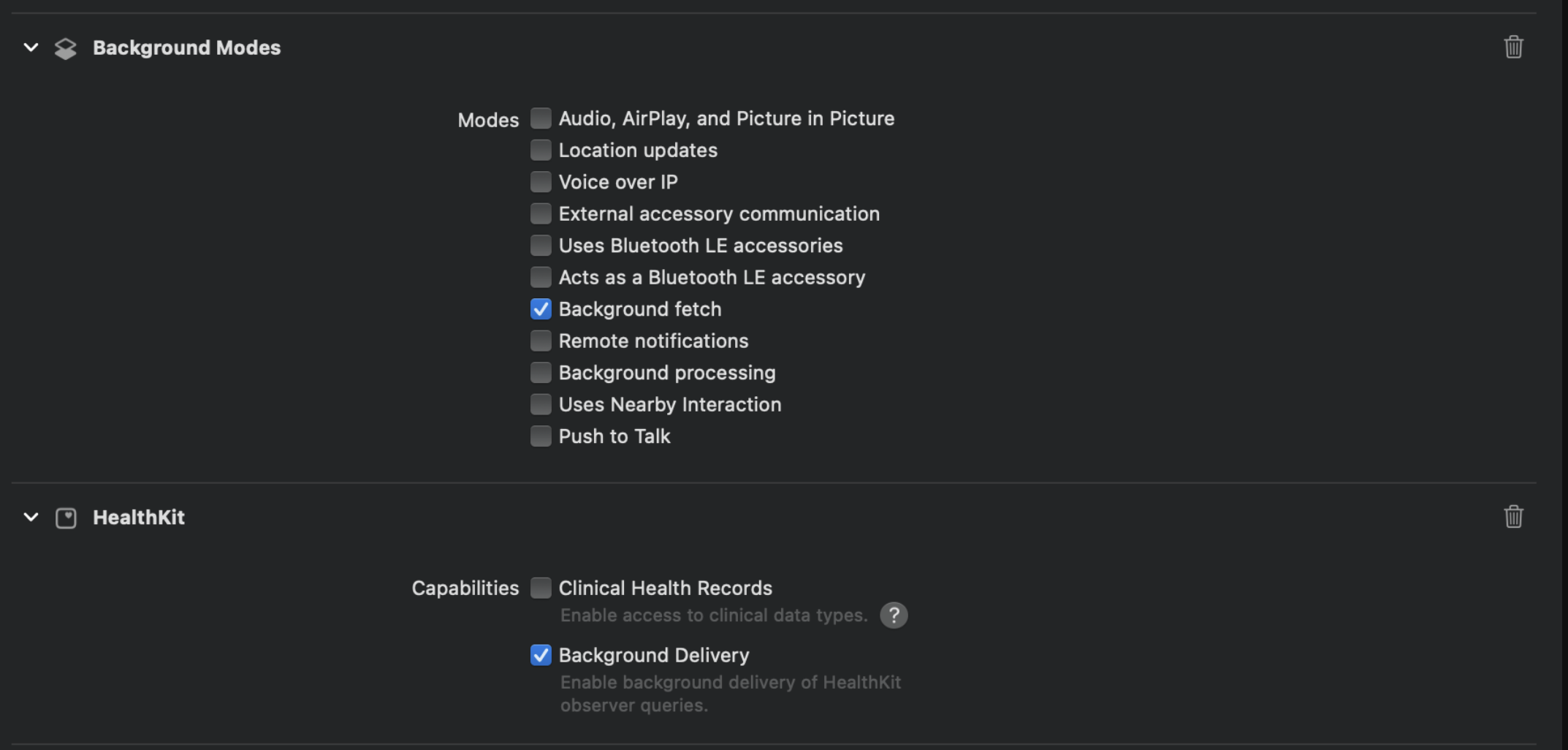
To configure background upload you need to follow the steps bellow:
- Add health kit to your project and enable background delivery.
- Add Background modes and enable Background fetch.
- In the app delegate of your app add the
setBackListenersmethod in didFinishLaunchingWithOptions function.
Example
#import "AppDelegate.h"
#import "RookSDK/RookSDK-Swift.h"
#import <React/RCTBundleURLProvider.h>

@implementation AppDelegate

- (BOOL)application:(UIApplication *)application didFinishLaunchingWithOptions:(NSDictionary *)launchOptions
{
  self.moduleName = @"RookSdkAppleHealthExample";
  // You can add your custom initial props in the dictionary below.
  // They will be passed down to the ViewController used by React Native.
  self.initialProps = @{};
  [[RookBackGroundSync shared] setBackListeners];

  return [super application:application didFinishLaunchingWithOptions:launchOptions];
}

- (NSURL *)sourceURLForBridge:(RCTBridge *)bridge
{
#if DEBUG
  return [[RCTBundleURLProvider sharedSettings] jsBundleURLForBundleRoot:@"index"];
#else
  return [[NSBundle mainBundle] URLForResource:@"main" withExtension:@"jsbundle"];
#endif
}

@end
Background Upload for Health Connect
To sync health data in background, use the scheduleBackgroundSync function during your app's initialization phase.
const useRookHealthConnect: () => {
  ready: boolean;
  isBackgroundSyncEnabled: () => Promise<boolean>;
  scheduleBackgroundSync: () => Promise<boolean>;
  cancelBackgroundSync: () => Promise<boolean>;
};
Properties
- ready - Boolean indicating whether the ROOK SDK is initialized and ready to accept method calls
Functions
-
scheduleBackgroundSync(): Promise<boolean>: Schedules the background synchronization of health data using ROOK. Enables automatic background data synchronization with ROOK's API based on defined configuration- Platform: Android only
- Returns:
Promise<boolean>- Success status of scheduling the background sync - Usage: Call this to enable automatic periodic fetching and sending of health data to ROOK's API in the background
-
cancelBackgroundSync(): Promise<boolean>: Cancels the scheduled background synchronization of health data. Stops the automatic background sync previously scheduled using ROOK- Platform: Android only
- Returns:
Promise<boolean>- Success status of canceling the background sync - Usage: Call this to stop automatic health data synchronization until scheduled again
-
isBackgroundSyncEnabled(): Promise<boolean>: Check if the background sync of health connect is active or not. - Platform: Android Only - Returns:Promise<boolean>- Success indicates the background sync is enabled - Usage: Call this to check the status of the background sync
import React, { useEffect } from "react";
import { View } from "react-native";
import { useRookHealthConnect } from "react-native-rook-sdk";

function MyComponent() {
  const { scheduleBackgroundSync } = useRookHealthConnect();

  useEffect(() => {
    tryToStartBackgroundSync();
  }, []);

  const tryToStartBackgroundSync = async () => {
    console.log("Attempting to enable background sync...");

    try {
      await scheduleBackgroundSync();
    } catch (error) {
      console.error(error);
    }
  };

  return <View>{/* Your UI components here */}</View>;
}

export default MyComponent;
Background Upload for Samsung
The useRookSamsungHealth hook provides a specialized interface for managing the synchronization state of Samsung Health on Android devices. It allows you to toggle the integration on or off and verify its current activation status.
const useRookSamsungHealth = () => {
    ready: boolean,
    enableSamsungSync: () => Promise<boolean>,
    disableSamsungSync: () => Promise<boolean>,
    isSamsungSyncEnabled: () => Promise<boolean>
}
Properties
- ready - Boolean indicating whether the ROOK SDK is initialized and ready to accept method calls
Functions
-
enableSamsungSync(): Activates the synchronization logic for Samsung Health data. This function ensures that the Android-specific background processes for Samsung Health are enabled.- Note: This function will throw an error if called on iOS.
- Returns:
Promise<boolean>
-
disableSamsungSync(): Deactivates the synchronization for Samsung Health. Use this to stop the SDK from extracting or processing data from the Samsung Health provider.- Note: This function will throw an error if called on iOS.
- Returns:
Promise<boolean>
-
isSamsungSyncEnabled(): Checks the current configuration status to see if Samsung Health synchronization is currently active.- Returns:
Promise<boolean>
- Returns:
Customizing the foreground service notification
To sync health data automatically, a Foreground Service is used. This service requires a notification to be displayed until the synchronization finishes.
To use your own resources, you need to reference them in the AndroidManifest.xml file:
<manifest xmlns:android="http://schemas.android.com/apk/res/android">
    <application>
        <meta-data
            android:name="io.tryrook.service.notification.SYNC_ICON"
            android:resource="@drawable/my_custom_icon"/>

        <meta-data
            android:name="io.tryrook.service.notification.SYNC_TITLE"
            android:resource="@string/my_custom_title"/>

        <meta-data
            android:name="io.tryrook.service.notification.SYNC_CONTENT"
            android:resource="@string/my_custom_content"/>
    </application>
</manifest>
Starting on Android 13 (SDK 33) this notification can be dismissed without finishing the service associated with it, then the service will be displayed in the active apps section (This may vary depending on device brand).
Launch/Stop conditions
scheduleYesterdaySync won't start or will stop if one the following conditions are meet:
- The device battery is low
- The device storage is low
- The device is not connected to the internet
- The user hasn't granted Android Permissions (POST_NOTIFICATIONS, FOREGROUND_SERVICE, FOREGROUND_SERVICE_HEALTH)
- The device has previously exceeded the Health Connect request quota and the recovery timestamp hasn't been meet
- The user hasn't granted Health Connect Permissions (SLEEP, PHYSICAL, BODY)
- The most recent request exceeded the Health Connect request quota
- The userID hasn't been configured
- There is an error initializing the SDK
Customizing permissions for Health Connect
If you want to reduce the Health Connect permissions used by this SDK you can do it following the manifest merge documentation and the SDK will change the behavior of request/check permissions functions based on the declared permissions:
For example if you remove the READ_MENSTRUATION permission...
<manifest xmlns:android="http://schemas.android.com/apk/res/android"
          xmlns:tools="http://schemas.android.com/tools">

    <uses-permission
        android:name="android.permission.health.READ_MENSTRUATION"
        tools:node="remove"/>
</manifest>
the functions checkHealthConnectPermissions and requestHealthConnectPermissions will check/request all permissions
excluding READ_MENSTRUATION
Note that this process only works for removing Health Connect permissions, adding a permission that is not included in the default list will do nothing.
Health Connect permissions are declared with the syntax: android.permission.health.READ.., to see the current Health Connect permissions go to you AndroidManifest and select the merged manifest tab.