Rook SDK
This SDK enables apps to extract and upload data from Apple Health and Health Connect. With this SDK, you will be able to extract and upload data.
Content
Installation
The minimum version of android sdk is 26, the target sdk 36 and the kotlin version >= 1.8.10
The SDK requires Xcode 26.0.0 or higher.
The minimum version of iOS is 13.0
npm
npm install capacitor-rook-sdk
npx cap sync
Configuration
Add your client UUID to be authorized. Follow the example below and add the RookConfig at the top level of your main app. The password refers to the secret key.
import { RookConfig } from 'capacitor-rook-sdk';
import { useEffect, useState } from 'react';

const Home: React.FC = () => {
  useEffect(() => {
    RookConfig.initRook({
      environment: 'sandbox',
      clientUUID: 'YOUR-CLIENT-UUID',
      secre: 'YOUR-SECRET-KEY',
      bundleId: 'YOUR-CUSTOM-BUNDLE-ID',
      packageName: 'YOUR-CUSTOM-PACKAGE-NAME',
      enableBackgroundSync: true,
      enableEventsBackgroundSync: true,
    })
      .then(() => console.log('Initialized'))
      .catch((e: any) => console.log('error', e));
  }, []);
  ...
iOS Configuration
Then we need to add Apple Health Kit Framework to our project in order to that please:
- Open your project in Xcode.
- Click on your project file in the Project Navigator.
- Select your target and then click on the "Build Phases" tab.
- Click on the "+" button under the "Link Binary With Libraries" section and select "HealthKit.framework" from the list.
- Select your target and then click on the "Signing Capabilities" tab.
- Click on "Add Capability" and search for "HealthKit"
Additionally add the following to the info.plist
<key>NSHealthShareUsageDescription</key>
<string>This app requires access to your health and fitness data in order to track your workouts and activity levels.</string>
<key>NSHealthUpdateUsageDescription</key>
<string>This app requires permission to write healt data to HealthKit.</string>
Android Configuration
Then we need to configure the Android project. Open the Android project inside Android Studio. We need to modify the AndroidManifest.xml file to access the Health Connect records.
Add an intent filter inside your activity tag to open the Health Connect app. Your AndroidManifest.xml file should look like this:
<manifest xmlns:android="http://schemas.android.com/apk/res/android">

    ...

    <application
      ...>
      <activity
        ...>
        <intent-filter>
            ...
        </intent-filter>

        <!-- For supported versions through Android 13, create an activity to show the rationale
        of Health Connect permissions once users click the privacy policy link. -->
          <intent-filter>
              <action android:name="androidx.health.ACTION_SHOW_PERMISSIONS_RATIONALE" />
          </intent-filter>
      </activity>

       <!-- For versions starting Android 14, create an activity alias to show the rationale
     of Health Connect permissions once users click the privacy policy link. -->
      <activity-alias
        android:name="ViewPermissionUsageActivity"
        android:exported="true"
        android:permission="android.permission.START_VIEW_PERMISSION_USAGE"
        android:targetActivity=".MainActivity">

        <intent-filter>
          <action android:name="android.intent.action.VIEW_PERMISSION_USAGE" />
          <category android:name="android.intent.category.HEALTH_PERMISSIONS" />
        </intent-filter>
      </activity-alias>
    </application>
</manifest>
Included permissions for Android
This SDK will use the following permissions, there is no need to declare them in your manifest as the rook-sdk already declares them in its own manifest:
<uses-permission android:name="android.permission.ACTIVITY_RECOGNITION"/>
<uses-permission android:name="android.permission.FOREGROUND_SERVICE"/>
<uses-permission android:name="android.permission.FOREGROUND_SERVICE_HEALTH"/>
<uses-permission android:name="android.permission.POST_NOTIFICATIONS"/>
<uses-permission android:name="android.permission.RECEIVE_BOOT_COMPLETED"/>

<uses-permission android:name="android.permission.health.READ_HEALTH_DATA_IN_BACKGROUND"/>
<uses-permission android:name="android.permission.health.READ_HEALTH_DATA_HISTORY"/>

<uses-permission android:name="android.permission.health.READ_SLEEP"/>
<uses-permission android:name="android.permission.health.READ_STEPS"/>
<uses-permission android:name="android.permission.health.READ_DISTANCE"/>
<uses-permission android:name="android.permission.health.READ_FLOORS_CLIMBED"/>
<uses-permission android:name="android.permission.health.READ_ELEVATION_GAINED"/>
<uses-permission android:name="android.permission.health.READ_OXYGEN_SATURATION"/>
<uses-permission android:name="android.permission.health.READ_VO2_MAX"/>
<uses-permission android:name="android.permission.health.READ_TOTAL_CALORIES_BURNED"/>
<uses-permission android:name="android.permission.health.READ_ACTIVE_CALORIES_BURNED"/>
<uses-permission android:name="android.permission.health.READ_HEART_RATE"/>
<uses-permission android:name="android.permission.health.READ_RESTING_HEART_RATE"/>
<uses-permission android:name="android.permission.health.READ_HEART_RATE_VARIABILITY"/>
<uses-permission android:name="android.permission.health.READ_EXERCISE"/>
<uses-permission android:name="android.permission.health.READ_SPEED"/>
<uses-permission android:name="android.permission.health.READ_WEIGHT"/>
<uses-permission android:name="android.permission.health.READ_HEIGHT"/>
<uses-permission android:name="android.permission.health.READ_BLOOD_GLUCOSE"/>
<uses-permission android:name="android.permission.health.READ_BLOOD_PRESSURE"/>
<uses-permission android:name="android.permission.health.READ_HYDRATION"/>
<uses-permission android:name="android.permission.health.READ_BODY_TEMPERATURE"/>
<uses-permission android:name="android.permission.health.READ_RESPIRATORY_RATE"/>
<uses-permission android:name="android.permission.health.READ_NUTRITION"/>
<uses-permission android:name="android.permission.health.READ_MENSTRUATION"/>
<uses-permission android:name="android.permission.health.READ_POWER"/>
<uses-permission android:name="android.permission.health.READ_BASAL_BODY_TEMPERATURE"/>
<uses-permission android:name="android.permission.health.READ_BODY_FAT"/>
<uses-permission android:name="android.permission.health.READ_LEAN_BODY_MASS"/>
<uses-permission android:name="android.permission.health.READ_BODY_WATER_MASS"/>
<uses-permission android:name="android.permission.health.READ_BONE_MASS"/>
Google may require you to provide an explanation about the FOREGROUND_SERVICE/FOREGROUND_SERVICE_HEALTH permissions.
These permissions are used by our Background Steps feature to track steps and upload it
to ROOK servers. We recommend asking users for permission before enabling these features. Google may also require a
video proof of a screen where a user can turn on or off these features.
Request data access for Android
When you are developing with the Health Connect SDK, data access is unrestricted. To have data access when your app is launched on the Play Store, you must complete the Play Console Health apps declaration. More information can be found here.
You will se a list like below of the permissions your app uses, you will need to provide a description on how your app uses the data of each permission.
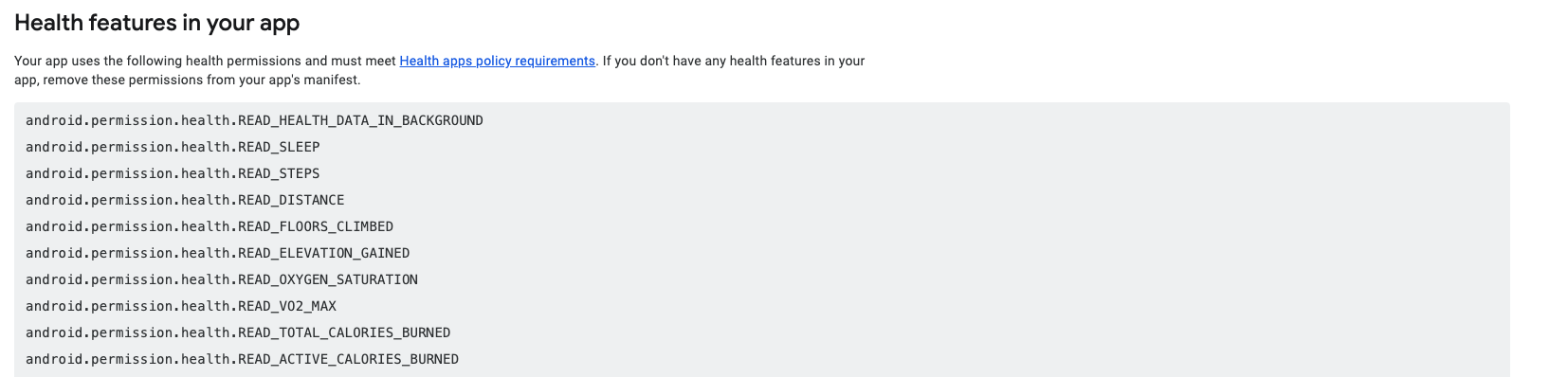
If you don't want access to a particular data type of Health Connect you can remove it.
Customizing permissions
If you want to reduce the Health Connect permissions used by this SDK you can do it following the manifest merge documentation and the SDK will change the behavior of request/check permissions functions based on the declared permissions:
For example if you remove the READ_MENSTRUATION permission...
<manifest xmlns:android="http://schemas.android.com/apk/res/android"
          xmlns:tools="http://schemas.android.com/tools">

    <uses-permission
        android:name="android.permission.health.READ_MENSTRUATION"
        tools:node="remove"/>
</manifest>
the functions checkHealthConnectPermissions and requestHealthConnectPermissions will check/request all permissions
excluding READ_MENSTRUATION
Note that this process only works for removing Health Connect permissions, adding a permission that is not included in the default list will do nothing.
Health Connect permissions are declared with the syntax: android.permission.health.READ.., to see the current Health Connect permissions go to you AndroidManifest and select the merged manifest tab.
Revoke permissions
You can reset all granted Health Connect permissions back to their original state with revokeHealthConnectPermissions:
Obfuscation for Android
If you are using obfuscation consider the following:
In your gradle.properties (Project level) add the following to disable R8 full mode:
android.enableR8.fullMode=false
If you want to enable full mode add the following rules to proguard-rules.pro:
# Keep generic signature of Call, Response (R8 full mode strips signatures from non-kept items).
-keep,allowobfuscation,allowshrinking interface retrofit2.Call
-keep,allowobfuscation,allowshrinking class retrofit2.Response

# With R8 full mode generic signatures are stripped for classes that are not
# kept. Suspend functions are wrapped in continuations where the type argument
# is used.
-keep,allowobfuscation,allowshrinking class kotlin.cor  outines.Continuation
Samsung Health Request data access
During development, you can access Samsung Health data by enabling developer mode.
To have data access in the production environment, you must submit the Samsung's Partnership Request Form.
Please submit partner request before your app distribution. Your app's package name and signature (SHA-256) will be registered in the Samsung Health's system after an approval.
Ensure that the correct app signature and package name is registered. If your published app signature differs from what you have provided, your app will not have access to Samsung's data.
You will see a section like this, select only the data types under the "Read" section:
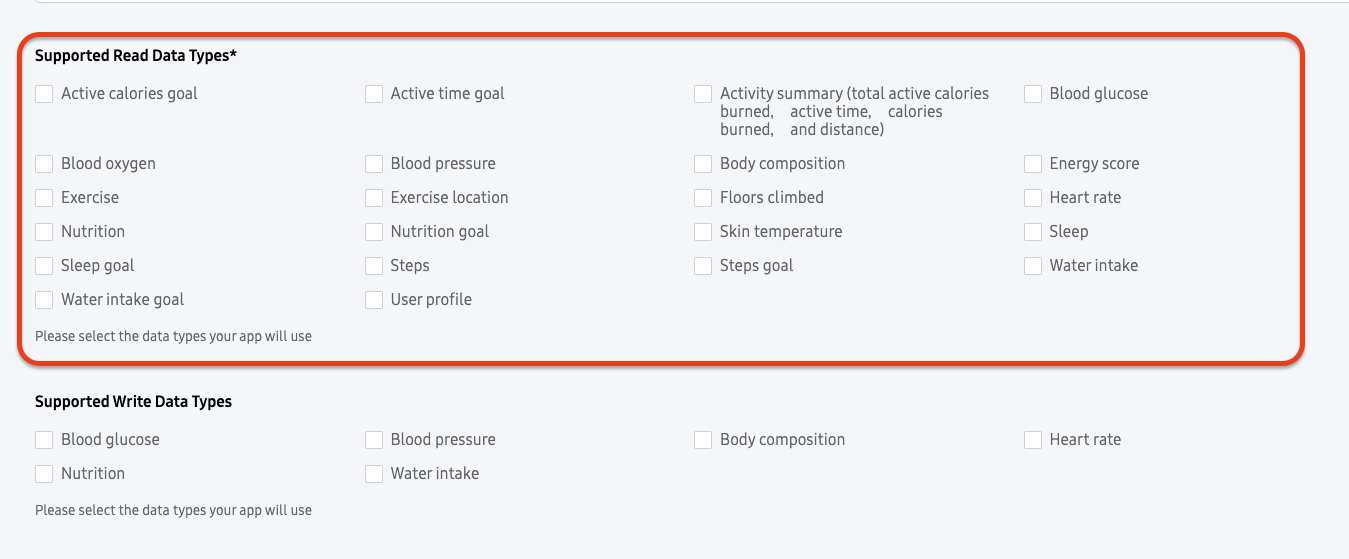
This SDK uses the following data types, however you don't need to declare all of them if you don't use it.
Usage
RookConfig
This object helps you initialize the SDK, inspect diagnostic state, and manage the current ROOK user.
const RookConfig = () => {
  initRook: (credentials: InitRookProps) => Promise<BoolResult>;
  getDiagnostic: (props?: DiagnosticProps) => Promise<SDKDiagnoticResult>;
  updateUserId: (userId: UpdateUserIdProps) => Promise<BoolResult>;
  getUserId: () => Promise<UserIdResult>;
  deleteUserFromRook: () => Promise<BoolResult>;
  syncUserTimeZone: () => Promise<boolean>;
}
initRook: Initializes the ROOK SDK and configures the environment, credentials, background features, and optional local logs.
The function accepts an object of type InitRookProps as its sole argument.
| Property | Type | Description | Required |
|---|---|---|---|
environment | Environment | Specifies the ROOK environment. Allowed values are sandbox and production. | Yes |
clientUUID | string | Unique identifier for your ROOK client application. | Yes |
secret | string | Secret key associated with the client. | Yes |
bundleId? | string | Optional custom iOS bundle identifier used by the SDK. | No |
packageName? | string | Optional custom Android package name used by the SDK. | No |
enableBackgroundSync | boolean | Enables background synchronization for summaries. | Yes |
enableEventsBackgroundSync | boolean | Enables background synchronization for events. | Yes |
enableLogs? | boolean | Enables local SDK logs. Defaults to false. | No |
export type Environment = 'production' | 'sandbox';
getDiagnostic: Returns a diagnostic snapshot for the active SDK configuration.
export type DiagnosticProps = {
  androidSource: 'HEALTH_CONNECT' | 'SAMSUNG';
};

export type SDKDiagnoticResult = {
  result: {
    isConfigured: boolean;
    userIdentified: boolean;
    permissions: string;
    backgroundSync: {
      enabled: boolean;
      lastSync?: string;
    };
    manualSync: {
      enabled: boolean;
      lastSync?: string;
    };
  };
};
updateUserId: Associates the SDK with a user in ROOK.
| Property | Type | Description | Required |
|---|---|---|---|
userId | string | User identifier to associate. | Yes |
getUserId: Returns the currently configured user ID.syncUserTimeZone: Updates the user's time zone in ROOK. Call this only when the device time zone changes and you need to synchronize that change explicitly.deleteUserFromRook: Removes the local ROOK user association for the current platform.
Note: After calling deleteUserFromRook, configure the user again with updateUserId and request permissions again before syncing more data.
RookPermissions
This object helps you request, inspect, and revoke the permissions used by the SDK.
type BoolResult = {
  result: boolean;
}

type RequestPermissionsStatusResult = {
  result: 'REQUEST_SENT' | 'ALREADY_GRANTED';
}

const RookPermissions: () => {
  requestAppleHealthPermissions: (props: PermissionTypePromps) => Promise<boolean>;
  requestDietaryWritePermissions: () => Promise<boolean>;
  requestHealthConnectPermissions: () => Promise<RequestPermissionsStatusResult>;
  requestSamsungHealthPermissions: (props: SamsungPermissionTypePromps) => Promise<StringResult>;
  requestAndroidPermissions: () => Promise<RequestPermissionsStatusResult>;
  checkSamsungHealthPermission: (props: SamsungPermissionTypePromps) => Promise<boolean>;
  checkSamsungHealthPermissionPartially: (props: SamsungPermissionTypePromps) => Promise<boolean>;
  checkHealthConnectPermissions: () => Promise<boolean>;
  checkHealthConnectPermissionsPartially: () => Promise<BoolResult>;
  revokeHealthConnectPermissions: () => Promise<BoolResult>;
  checkAndroidPermissions: () => Promise<BoolResult>;
  checkExactAlarmPermissions: () => Promise<boolean>;
  requestExactAlarmPermissions: () => Promise<StringResult>;
  checkBatteryOptimizationsDisabled: () => Promise<boolean>;
  requestDisableBatteryOptimizations: () => Promise<StringResult>;
  checkHistoryReadStatus: () => Promise<StringResult>;
  requiresOemAutoStartSetup: () => Promise<boolean>;
  openOemAutoStartSetup: () => Promise<StringResult>;
  openIOSSettings: () => Promise<boolean>;
  openHealthConnectSettings: () => Promise<boolean>;
  addListener: (
    eventName: EventNames,
    callback: (info: any) => void
  ) => Promise<PluginListenerHandle>;
};
requestAppleHealthPermissions: Requests the default Apple Health read permissions, or only the custom list passed inPermissionTypePromps. Only works on iOS.requestDietaryWritePermissions: Requests Apple Health dietary write permission used for nutrition insertion flows. Only works on iOS.requestHealthConnectPermissions: Requests all declared Health Connect read permissions. Only works on Android.requestSamsungHealthPermissions: Requests the Samsung Health permissions passed inSamsungPermissionTypePromps. Only works on Samsung Health-enabled Android devices.requestAndroidPermissions: Requests the Android runtime permissions used by ROOK background features. Only works on Android.checkSamsungHealthPermission: Returns whether all requested Samsung Health permissions are granted.checkSamsungHealthPermissionPartially: Returns whether at least one requested Samsung Health permission is granted.checkHealthConnectPermissions: Returns whether all declared Health Connect permissions are granted.checkHealthConnectPermissionsPartially: Returns whether at least one declared Health Connect permission is granted.revokeHealthConnectPermissions: Resets granted Health Connect permissions. On Android this revocation may become visible after the app process is closed. Only works on Android.checkAndroidPermissions: Returns whether the Android permissions required by ROOK background services are granted.checkExactAlarmPermissions: Checks whether the app can schedule exact alarms on Android. On Android 12+ it checks the system exact alarm access state, while on Android 11 and lower it returnstrue. Only works on Android.requestExactAlarmPermissions: Opens the Android system screen to grant exact alarm access. The returnedStringResult.resultisALREADY_GRANTEDwhen access is already available or not required, andREQUEST_SENTwhen the settings screen was opened. Since Android does not provide a direct callback for this flow, callcheckExactAlarmPermissionsagain when the app resumes. Only works on Android.checkBatteryOptimizationsDisabled: Checks whether the app is exempt from Android battery optimizations. A value oftruemeans the app is already ignoring battery optimizations. Only works on Android.requestDisableBatteryOptimizations: Opens the Android system dialog to request battery optimization exemption for the app. The returnedStringResult.resultisALREADY_GRANTEDwhen the app is already exempt, andREQUEST_SENTwhen the system dialog was opened. Since Android does not provide a direct callback for this flow, callcheckBatteryOptimizationsDisabledagain when the app resumes. Only works on Android.checkHistoryReadStatus: Returns the Health Connect history-read state.StringResult.resultisUNAVAILABLE,PERMISSION_NOT_GRANTED, orPERMISSION_GRANTED. A granted result allows Health Connect synchronization beyond the standard 30-day window. Call this method afterRookConfig.initRook(...). Only works on Android.requiresOemAutoStartSetup: Checks whether the device exposes a known OEM auto-start or auto-launch management screen. In the Android SDK bundled with Capacitor 4.2.0, this covers Xiaomi, OPPO, OnePlus, Realme, Huawei, Honor, and Vivo. A value oftruemeans the OEM setup screen exists, not that auto-start is currently disabled for your app. Only works on Android.openOemAutoStartSetup: Opens the OEM-specific auto-start or auto-launch settings screen when one is available. The returnedStringResult.resultisREQUEST_SENTwhen a settings activity was launched, andALREADY_GRANTEDwhen the device has no supported OEM screen. Only works on Android.openIOSSettings: Opens the iOS Settings app for your application. Only works on iOS.openHealthConnectSettings: Opens Health Connect settings. Only works on Android.addListener: Registers a listener for ROOK permission events.
export type PermissionTypePromps = {
  types?: Array<AppleHealthPermissionType>;
}
If you use requestAppleHealthPermissions, it is recommended to include at least stepCount, height, bodyMass, heartRate, heartRateVariabilitySDNN, workout, sleepAnalysis, and oxygenSaturation so the SDK can work correctly.
Remember that partial-permission behavior varies between platforms. For iOS, pass the custom list you want to request. For Android (Health Connect), customize the list using the manifest merge mechanism.
export type AppleHealthPermissionType =
| 'appleExerciseTime'
| 'appleMoveTime'
| 'appleStandTime'
| 'basalEnergyBurned'
| 'activeEnergyBurned'
| 'stepCount'
| 'distanceCycling'
| 'distanceWalkingRunning'
| 'distanceSwimming'
| 'swimmingStrokeCount'
| 'flightsClimbed'
| 'walkingSpeed'
| 'walkingStepLength'
| 'runningPower'
| 'runningSpeed'
| 'stairAscentSpeed'
| 'cyclingPower'
| 'cyclingSpeed'
| 'waterTemperature'
| 'height'
| 'bodyMass'
| 'bodyMassIndex'
| 'waistCircumference'
| 'bodyFatPercentage'
| 'bodyTemperature'
| 'basalBodyTemperature'
| 'appleSleepingWristTemperature'
| 'heartRate'
| 'restingHeartRate'
| 'walkingHeartRateAverage'
| 'heartRateVariabilitySDNN'
| 'electrocardiogram'
| 'workout'
| 'workoutRoute'
| 'sleepAnalysis'
| 'sleepApneaEvent'
| 'vo2Max'
| 'oxygenSaturation'
| 'respiratoryRate'
| 'uvExposure'
| 'biologicalSex'
| 'dateOfBirth'
| 'bloodPressureSystolic'
| 'bloodPressureDiastolic'
| 'bloodGlucose'
| 'dietaryEnergyConsumed'
| 'dietaryProtein'
| 'dietarySugar'
| 'dietaryFatTotal'
| 'dietaryCarbohydrates'
| 'dietaryFiber'
| 'dietarySodium'
| 'dietaryCholesterol'
| 'dietaryBiotin'
| 'dietaryCaffeine'
| 'dietaryCalcium'
| 'dietaryChloride'
| 'dietaryChromium'
| 'dietaryCopper'
| 'dietaryFatMonounsaturated'
| 'dietaryFatPolyunsaturated'
| 'dietaryFatSaturated'
| 'dietaryFolate'
| 'dietaryIodine'
| 'dietaryIron'
| 'dietaryMagnesium'
| 'dietaryManganese'
| 'dietaryMolybdenum'
| 'dietaryNiacin'
| 'dietaryPantothenicAcid'
| 'dietaryPhosphorus'
| 'dietaryPotassium'
| 'dietaryRiboflavin'
| 'dietarySelenium'
| 'dietaryThiamin'
| 'dietaryVitaminA'
| 'dietaryVitaminB12'
| 'dietaryVitaminB6'
| 'dietaryVitaminC'
| 'dietaryVitaminD'
| 'dietaryVitaminE'
| 'dietaryVitaminK'
| 'dietaryWater'
| 'dietaryZinc'
| 'estimatedWorkoutEffortScore'
| 'physicalEffort'
| 'workoutEffortScore'
export type SamsungPermissionTypePromps = {
  types: Array<SamsungPermissionType>;
}

export type SamsungPermissionType =
| 'ACTIVITY_SUMMARY'
|'BLOOD_GLUCOSE'
|'BLOOD_OXYGEN'
|'BLOOD_PRESSURE'
|'BODY_COMPOSITION'
|'EXERCISE'
|'EXERCISE_LOCATION'
|'FLOORS_CLIMBED'
|'HEART_RATE'
|'NUTRITION'
|'SLEEP'
|'SLEEP_APNEA'
|'STEPS'
|'WATER_INTAKE'
|'BODY_TEMPERATURE'
type EventNames =
  | 'io.tryrook.permissions.android'
  | 'io.tryrook.permissions.healthConnect';
'io.tryrook.permissions.android': Event emitted for Android runtime permission flows.'io.tryrook.permissions.healthConnect': Event emitted for Health Connect permission flows.
Note: A fulfilled permission-request promise only indicates that the system permission UI was opened or that permissions were already granted. It does not guarantee that the user approved the request.
Health Connect request quota
To maintain optimal system stability and performance, Health Connect imposes rate limits on client connections to the Health Connect API.
It is important to understand that every data type in the ROOK SDK is constructed of multiple health variables, such as heart rate, step count, hydration, etc. When a Sleep Summary is extracted, multiple calls are made to the Health Connect API. While we have focused on optimizing and reducing the number of API calls required for each data type, it is still possible to reach the limit, especially when performing multiple extractions in a short period.
Depending on the sync type you choose, keep the following in mind:
Request quota when syncing data manually
- Extract summaries once daily: Since summaries collect health data from the previous day, there is no need to extract them more than once per day.
- Use what you already have: If you are extracting Physical Events, you do not need to extract Heart Rate Events (Physical) or Oxygenation Events (Physical) as these are already included in the PhysicalEvent object.
- Only sync the relevant health data for your use case: If you are not interested in individual events and only want to sync the summary of a specific date, use the
syncfunctions inRookSummaries. - If you have already reached the request quota, avoid calling any
syncfunction for the next few hours to allow your quota to recover.
Request quota when syncing data automatically
When Health Connect background sync is enabled with enableHealthConnectBackGround(), the SDK already handles most quota-related limitations. When the quota is reached, pending syncs are canceled and a recovery timestamp is created. Pending syncs will not resume until the user reopens the app after a few hours.
Continuous Upload for iOS
The RookAppleHealth object helps you enable or disable continuous upload on iOS. When enabled, the SDK attempts to upload previous-day summaries whenever the user opens the app.
Note: Before enabling this feature, configure a user with RookConfig.updateUserId(...) and request Apple Health permissions.
| Method | Description |
|---|---|
enableAppleHealthSync | Enables automatic upload of previous-day summaries when the app opens. |
disableAppleHealthSync | Disables automatic upload of previous-day summaries when the app opens. |
isAppleHealthSyncEnable | Returns whether continuous Apple Health upload is currently enabled. |
Background Upload for iOS
RookAppleHealth
The RookAppleHealth object helps enable background upload for summaries and events on iOS.
const RookAppleHealth = () => {
  enableAppleHealthSync: () => Promise<boolean>;
  disableAppleHealthSync: () => Promise<boolean>;
  isAppleHealthSyncEnable: () => Promise<boolean>;
  enableBackGroundUpdates: () => Promise<BoolResult>;
  disableBackGroundUpdates: () => Promise<BoolResult>;
  isBackGroundUpdatesEnable: () => Promise<BoolResult>;
  enableBackGroundEventsUpdates: () => Promise<BoolResult>;
  disableBackGroundEventsUpdates: () => Promise<BoolResult>;
  isBackGroundEventsUpdatesEnable: () => Promise<BoolResult>;
  starListening: () => Promise<BoolResult>; // exported with this exact name in the current Capacitor wrapper
  stopListening: () => Promise<BoolResult>;
  addListener(eventName: AppleEventNames, callback: (info: any) => void): Promise<PluginListenerHandle>;
}
enableBackGroundUpdates: Enables background upload for summaries.disableBackGroundUpdates: Disables background upload for summaries.isBackGroundUpdatesEnable: Returns whether summary background upload is enabled.enableBackGroundEventsUpdates: Enables background upload for events.disableBackGroundEventsUpdates: Disables background upload for events.isBackGroundEventsUpdatesEnable: Returns whether event background upload is enabled.starListening: Attaches the native iOS listener used by the Capacitor wrapper. The method is currently exported asstarListening.stopListening: Removes the native iOS listeners attached by the wrapper.addListener: Registers a listener for iOS background Apple Health errors.enableAppleHealthSync: Enables continuous Apple Health upload.disableAppleHealthSync: Disables continuous Apple Health upload.isAppleHealthSyncEnable: Returns whether continuous Apple Health upload is enabled.
type AppleEventNames = 'io.tryrook.background.appleHealth.errors';
'io.tryrook.background.appleHealth.errors': Event emitted for Apple Health background-sync errors.
Note: For security reasons, HealthKit data may be unavailable while the device is locked. Background reads can therefore be limited by the user's device state.
| Method | Description |
|---|---|
enableBackGroundUpdates | Enables background upload of summaries. |
disableBackGroundUpdates | Disables background upload of summaries. |
isBackGroundUpdatesEnable | Returns the background-upload status for summaries. |
enableBackGroundEventsUpdates | Enables background upload of events. |
disableBackGroundEventsUpdates | Disables background upload of events. |
isBackGroundEventsUpdatesEnable | Returns the background-upload status for events. |
To configure iOS background upload:
- Add HealthKit to your project and enable background delivery.
- Enable the
Background fetchbackground mode. - In your app delegate, call
RookBackGroundSync.shared.setBackListeners()indidFinishLaunchingWithOptions.
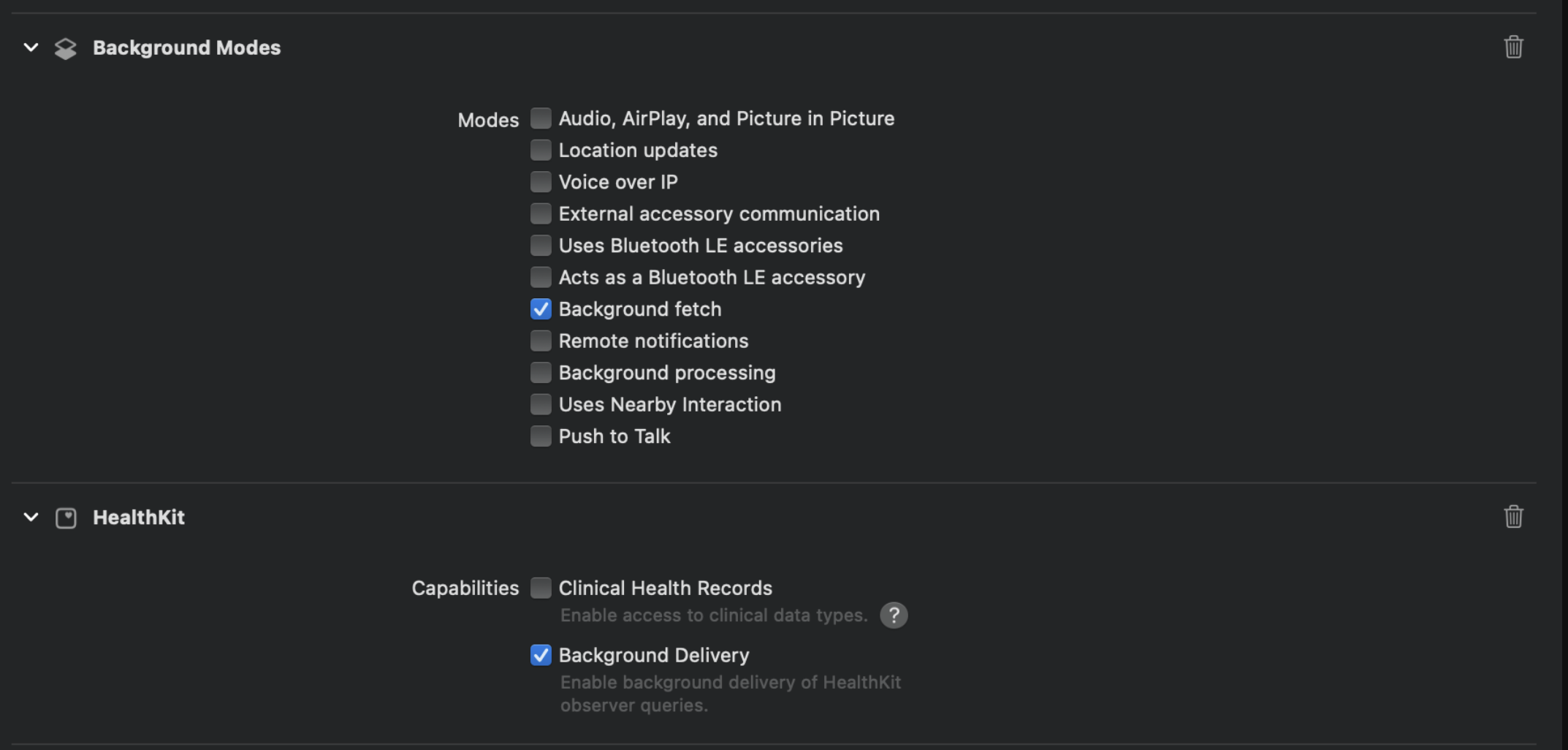
Example
import UIKit
import Capacitor
import RookSDK

@UIApplicationMain
class AppDelegate: UIResponder, UIApplicationDelegate {

    var window: UIWindow?

    func application(_ application: UIApplication, didFinishLaunchingWithOptions launchOptions: [UIApplication.LaunchOptionsKey: Any]?) -> Bool {
        RookBackGroundSync.shared.setBackListeners()
        return true
    }

...
Background Upload for Android
RookHealthConnect
The RookHealthConnect object helps you inspect Health Connect availability, manage Health Connect background sync, and access deprecated Android step-counter helpers that now live in RookStepsCounter.
const RookHealthConnect = () => {
  checkAvailability: () => Promise<CheckAvailabilityResult>;
  enableHealthConnectBackGround: () => Promise<BoolResult>;
  disableHealthConnectBackGround: () => Promise<BoolResult>;
  isBackGroundUpdatesEnable: () => Promise<BoolResult>;
  syncTodayAndroidStepsCount: () => Promise<StepsResult>; // Deprecated. Use RookStepsCounter.getRookTodayStepsCount().
  enableBackgroundAndroidSteps: () => Promise<BoolResult>; // Deprecated. Use RookStepsCounter.enableRookStepsCounter().
  disableBackgroundAndroidSteps: () => Promise<BoolResult>; // Deprecated. Use RookStepsCounter.disableRookStepsCounter().
  isBackgroundAndroidStepsActive: () => Promise<BoolResult>; // Deprecated. Use RookStepsCounter.isRookStepsCounterActive().
  checkBackgroundReadStatus: () => Promise<StringResult>;
}
checkAvailability: Checks whether Health Connect is available on the device.CheckAvailabilityResult.resultcan beINSTALLED,NOT_INSTALLED, orNOT_SUPPORTED.enableHealthConnectBackGround: Schedules Health Connect background sync.disableHealthConnectBackGround: Cancels the scheduled Health Connect background sync.isBackGroundUpdatesEnable: Returns whether Health Connect background sync is currently scheduled.checkBackgroundReadStatus: Returns the current background-read state.StringResult.resultcan beUNAVAILABLE,PERMISSION_NOT_GRANTED, orPERMISSION_GRANTED.syncTodayAndroidStepsCount: Deprecated. UseRookStepsCounter.getRookTodayStepsCount().enableBackgroundAndroidSteps: Deprecated. UseRookStepsCounter.enableRookStepsCounter().disableBackgroundAndroidSteps: Deprecated. UseRookStepsCounter.disableRookStepsCounter().isBackgroundAndroidStepsActive: Deprecated. UseRookStepsCounter.isRookStepsCounterActive().
Background sync
RookHealthConnect can schedule an automatic hourly background sync for Health Connect data.
The following table describes the Background Sync frequency and historical range for each structure:
| Health structure | Frequency | Historical range |
|---|---|---|
| Sleep Summary | Once per day | 29 days in the past until yesterday |
| Body Summary | Once per day | 29 days in the past until yesterday |
| Physical Summary | Once per day | 29 days in the past until yesterday |
| Physical Activity | Once per hour | 29 days in the past until today |
| Steps | Once per hour | Today |
| Calories | Once per hour | Today |
| Body metrics | Once per hour | Today |
| Heart rate | Once per hour | Today |
| Oxygenation | Once per hour | Today |
| Temperature | Once per hour | Today |
| Hydration | Once per hour | Today |
| Nutrition | Once per hour | Today |
| Blood pressure | Once per hour | Today |
| Blood glucose | Once per hour | Today |
Background Sync also requires a configured user ID, so the first scheduled execution may do nothing until a user is configured and all required permissions are granted.
A common pattern is to save the user's preference locally and only call enableHealthConnectBackGround() when that preference is enabled.
Once started, Background Sync attempts to sync historical data and stops when it finishes or when the Health Connect request quota is exceeded.
Execution/Skip conditions
Each periodic execution checks a set of prerequisites and skips the run when any of the following is true:
- The device battery is low.
- The device storage is low.
- The device is not connected to the internet.
- The user ID has not been configured.
- The most recent request exceeded the Health Connect request quota.
- The user has not granted Health Connect permissions.
- The user has not granted the background-read permission.
- There is an error initializing the SDK.
If you want to inspect the current background-read capability, call checkBackgroundReadStatus().
Health Connect background reads require both a compatible Health Connect app version and the READ_HEALTH_DATA_IN_BACKGROUND permission.
syncTodayAndroidStepsCount, enableBackgroundAndroidSteps, disableBackgroundAndroidSteps, and isBackgroundAndroidStepsActive are deprecated.
Use RookStepsCounter for Android step-counter features instead.
RookStepsCounter
RookStepsCounter is the Android-only API for the native Rook steps counter.
Use it when you want to:
- Check whether the current Android device supports the Rook steps counter.
- Enable or disable the native step counter.
- Check whether the step counter is active.
- Read today's step count collected by the step counter.
Platform availability
RookStepsCounter is only available on Android.
It should not be called from iOS code paths.
For shared Ionic or Capacitor apps, guard access with a platform check:
import { Capacitor } from '@capacitor/core';
import { RookStepsCounter } from 'capacitor-rook-sdk';

const isAndroid = Capacitor.getPlatform() === 'android';

if (isAndroid) {
  const availability = await RookStepsCounter.isRookStepsCounterAvailable();
  console.log(availability.result);
}
Prerequisite
Initialize Rook before using this object. If Rook has not been initialized, the native Android layer rejects the call with an initialization error.
import { RookConfig } from 'capacitor-rook-sdk';

await RookConfig.initRook({
  clientUUID: 'YOUR_CLIENT_UUID',
  secret: 'YOUR_SECRET_KEY',
  environment: 'sandbox',
});
Recommended flow
- Verify that the app is running on Android.
- Initialize Rook with
RookConfig.initRook(...). - Call
RookStepsCounter.isRookStepsCounterAvailable()before showing step-counter actions in the UI. - Enable the counter with
RookStepsCounter.enableRookStepsCounter(). - Confirm the current status with
RookStepsCounter.isRookStepsCounterActive(). - Read today's steps with
RookStepsCounter.getRookTodayStepsCount(). - Disable the counter with
RookStepsCounter.disableRookStepsCounter()when needed.
API reference
isRookStepsCounterAvailable()
Returns a BoolResult with the shape { result: boolean }.
true: the current Android device supports the Rook steps counter.false: the steps counter is not available on this device.
isRookStepsCounterActive()
Returns a BoolResult with the shape { result: boolean }.
true: the steps counter is currently enabled.false: the steps counter is currently disabled.
enableRookStepsCounter()
Enables the native Rook steps counter and returns a BoolResult.
true: the enable operation succeeded.false: the enable operation did not succeed.
disableRookStepsCounter()
Disables the native Rook steps counter and returns a BoolResult.
true: the disable operation succeeded.false: the disable operation did not succeed.
getRookTodayStepsCount()
Returns a StepsResult with the shape { stepCount: number }.
The stepCount value is today's total steps reported by the native Rook steps counter.
Example
import { Capacitor } from '@capacitor/core';
import { RookConfig, RookStepsCounter } from 'capacitor-rook-sdk';

async function setupStepsCounter() {
  if (Capacitor.getPlatform() !== 'android') return;

  await RookConfig.initRook({
    clientUUID: 'YOUR_CLIENT_UUID',
    secret: 'YOUR_SECRET_KEY',
    environment: 'sandbox',
  });

  const availability = await RookStepsCounter.isRookStepsCounterAvailable();

  if (!availability.result) {
    return;
  }

  await RookStepsCounter.enableRookStepsCounter();

  const active = await RookStepsCounter.isRookStepsCounterActive();
  const todaySteps = await RookStepsCounter.getRookTodayStepsCount();

  console.log('Steps counter active:', active.result);
  console.log('Today steps:', todaySteps.stepCount);
}
Migration from deprecated Health Connect step methods
If you are still using step methods from RookHealthConnect, migrate to RookStepsCounter:
| Deprecated method | Use instead |
|---|---|
RookHealthConnect.syncTodayAndroidStepsCount() | RookStepsCounter.getRookTodayStepsCount() |
RookHealthConnect.enableBackgroundAndroidSteps() | RookStepsCounter.enableRookStepsCounter() |
RookHealthConnect.disableBackgroundAndroidSteps() | RookStepsCounter.disableRookStepsCounter() |
RookHealthConnect.isBackgroundAndroidStepsActive() | RookStepsCounter.isRookStepsCounterActive() |
Notes for other developers
- Prefer
RookStepsCounterfor Android step-counter features instead of the deprecatedRookHealthConnectstep methods. - Check availability before enabling the feature, since support can vary by device.
- Keep Android guards close to the call site in shared codebases to avoid accidental iOS calls.
Deprecated background steps
The following RookHealthConnect methods are deprecated and remain documented for legacy integrations:
-
enableBackgroundAndroidSteps: Deprecated. UseRookStepsCounter.enableRookStepsCounter()to start tracking steps. -
disableBackgroundAndroidSteps: Deprecated. UseRookStepsCounter.disableRookStepsCounter()to stop tracking steps. -
isBackgroundAndroidStepsActive: Deprecated. UseRookStepsCounter.isRookStepsCounterActive()to check if the service is active.
Track and upload steps from Android System in background.
This legacy feature enables automatic extraction and upload of steps without needing to install Health Connect.
Customizing the foreground service notification
The steps manager uses a foreground Service which requires a notification to be permanently displayed.
The notification has the next default values:
-
Title: Steps service
-
Content: Tracking your steps…
To use your own resources you need to reference them in the AndroidManifest.xml file:
<manifest xmlns:android="http://schemas.android.com/apk/res/android">
    <application>
        <meta-data
            android:name="io.tryrook.service.notification.STEPS_ICON"
            android:resource="@drawable/my_custom_icon"/>
        <meta-data
            android:name="io.tryrook.service.notification.STEPS_TITLE"
            android:resource="@string/my_custom_title"/>
        <meta-data
            android:name="io.tryrook.service.notification.STEPS_CONTENT"
            android:resource="@string/my_custom_content"/>
    </application>
</manifest>
Starting on Android 13 (SDK 33) this notification can be dismissed without finishing the service associated with it, then the service will be displayed in the active apps section (This may vary depending on device brand).
This function is resource intensive, don't call it too frequently, as it could have a negative impact in your users experience.
Additional information
Auto start
After a call to deprecated enableBackgroundAndroidSteps if the device is restarted the Foreground service will start after the user unlocks their device for the first time (This may vary depending on device brand). This behavior will be stopped when calling deprecated disableBackgroundAndroidSteps.
Considerations
The steps service is designed to always be active but there are certain scenarios where the service could not behave as intended:
-
If the user force closes the application from settings, and then restarts their device the service may not be able to restart.
-
The steps are scheduled to be uploaded every hour from the time deprecated
enableBackgroundAndroidStepswas called, however it's not possible to guarantee the exact execution time as this depends on how the Android System manages the device resources.
Customizing the foreground service notification
To sync health data automatically, a Foreground Service is used. This service requires a notification to be displayed until the synchronization finishes.
To use your own resources, you need to reference them in the AndroidManifest.xml file:
<manifest xmlns:android="http://schemas.android.com/apk/res/android">
    <application>
        <meta-data
            android:name="io.tryrook.service.notification.SYNC_ICON"
            android:resource="@drawable/my_custom_icon"/>

        <meta-data
            android:name="io.tryrook.service.notification.SYNC_TITLE"
            android:resource="@string/my_custom_title"/>

        <meta-data
            android:name="io.tryrook.service.notification.SYNC_CONTENT"
            android:resource="@string/my_custom_content"/>
    </application>
</manifest>
Starting with Android 13 (SDK 33), this notification can be dismissed without finishing the service associated with it. The service will then be displayed in the active apps section (this may vary depending on the device brand).
RookSamsungHealth
The RookSamsungHealth object helps you inspect Samsung Health availability and manage Samsung Health background sync.
const RookSamsungHealth = () => {
  checkSamsungHealthAvailability: () => Promise<StringResult>;
  enableBackGroundUpdates: () => Promise<BoolResult>;
  disableBackGroundUpdates: () => Promise<BoolResult>;
  isBackGroundUpdatesEnable: () => Promise<BoolResult>;
}
checkSamsungHealthAvailability: Checks whether Samsung Health is installed and available on the device.enableBackGroundUpdates: Schedules Samsung Health background sync.disableBackGroundUpdates: Cancels Samsung Health background sync.isBackGroundUpdatesEnable: Returns whether Samsung Health background sync is currently scheduled.
RookSummaries
This object helps you upload and read summary data from Apple Health, Health Connect, or Samsung Health depending on the platform and selected data source.
const RookSummaries: () => {
  reSyncFailedSummaries: () => Promise<BoolResult>;
  sync: (props: SyncProps) => Promise<BoolResult>;
  getSleepSummaries: (props: GetDataProps) => Promise<SleepSummaryResult>;
  getPhysicalSummary: (props: GetDataProps) => Promise<PhysicalSummaryResult>;
  getBodySummary: (props: GetDataProps) => Promise<BodySummaryResult>;
};
export type DateProps = {
  date: string;
  dataSource?: DataSourceType;
};

export type SyncProps = {
  date?: string;
  types?: Array<SummaryType>;
  dataSource?: DataSourceType;
};

export type SummaryType =
  | 'sleep'
  | 'physical'
  | 'body';

export type DataSourceType =
  | 'HEALTH_CONNECT'
  | 'SAMSUNG'
  | 'ALL'

export type GetDataProps = {
  date: string;
  dataSource?: HealthKitSourceType;
};

export type HealthKitSourceType =
  | 'HEALTH_CONNECT'
  | 'SAMSUNG'
The bellow object represents the sleep summary returned by getSleepSummaries:
export type SleepSummaryResult = {
  result: SleepSummary[];
};

export type SleepSummary = {
  datetime: string;
  sourceOfData: string;
  sleepHealthScore?: number | null;
  sleepStartDatetime: string;
  sleepEndDatetime: string;
  sleepDate: string;
  sleepDurationSeconds?: number | null;
  timeInBedSeconds?: number | null;
  lightSleepDurationSeconds?: number | null;
  remSleepDurationSeconds?: number | null;
  deepSleepDurationSeconds?: number | null;
  timeToFallAsleepSeconds?: number | null;
  timeAwakeDuringSleepSeconds?: number | null;
  sleepQualityRating1_5_Score?: number | null;
  sleepEfficiency1_100_Score?: number | null;
  sleepGoalSeconds?: number | null;
  sleepContinuity1_5_Score?: number | null;
  sleepContinuity1_5_Rating?: number | null;
  hrMaxBPM?: number | null;
  hrMinimumBPM?: number | null;
  hrAvgBPM?: number | null;
  hrRestingBPM?: number | null;
  hrBasalBPM?: number | null;
  hrGranularDataBPM?: HeartRateGranular[] | null;
  hrvAvgRmssdNumber?: number | null;
  hrvAvgSdnnNumber?: number | null;
  hrvSdnnGranularData?: HRVSDNNGranular[] | null;
  hrvRmssdGranularData?: HRVRmssdGranular[] | null;
  temperatureMinimumCelsius?: Temperature | null;
  temperatureAvgCelsius?: Temperature | null;
  temperatureMaxCelsius?: Temperature | null;
  temperatureGranularDataCelsius?: TemperatureGranular[] | null;
  temperatureDeltaCelsius?: Temperature[] | null;
  breathsMinimumPerMin?: number | null;
  breathsAvgPerMin?: number | null;
  breathsMaxPerMin?: number | null;
  breathingGranularDataBreathsPerMin?: BreatingGranular[] | null;
  snoringEventsCountNumber?: number | null;
  snoringDurationTotalSeconds?: number | null;
  snoringGranularDataSnores?: SnoringGranular[] | null;
  saturationAvgPercentage?: number | null;
  saturationGranularDataPercentage?: SaturationGranular[] | null;
  saturationMinPercentage?: number | null;
  saturationMaxPercentage?: number | null;
  apneaEvents?: ApneaEvent[] | null;
  sleepSamples?: SleepZoneSample[] | null;
  maxWristTemperature?: number | null;
  minWristTemperature?: number | null;
  averageWristTemperature?: number | null;
  granularWristTemperatureData?: AppleWristTemperatureSample[] | null;
};
The bellow object represents the physical summary returned by getPhysicalSummary:
export type PhysicalSummary = {
  dateTime: string;
  physicalHealthScore?: number | null;
  stepsPerDayNumber?: number | null;
  stepsGranularDataStepsPerHr?: StepsGranular[] | null;
  activeStepsPerDayNumber?: number | null;
  activeStepsGranularDataStepsPerHr?: StepsGranular[] | null;
  walkedDistanceMeters?: number | null;
  traveledDistanceMeters?: number | null;
  cyclingDistanceMeters?: number | null;
  traveledDistanceGranularDataMeters?: TraveledDistanceGranular[] | null;
  floorsClimbedNumber?: number | null;
  floorsClimbedGranularDataFloors?: FloorsClimbedGranular[] | null;
  elevationAvgAltitudeMeters?: number | null;
  elevationMinimumAltitudeMeters?: number | null;
  elevationMaxAltitudeMeters?: number | null;
  elevationLossActualAltitudeMeters?: number | null;
  elevationGainActualAltitudeMeters?: number | null;
  elevationPlannedGainMeters?: number | null;
  elevationGranularDataMeters?:  ElevationGranular[] | null;
  swimmingStrokesNumber?: number | null;
  swimmingNumLapsNumber?: number | null;
  swimmingPoolLengthMeters?: number | null;
  swimmingTotalDistanceMeters?: number | null;
  swimmingDistanceGranularDataMeters?: SwimmingDistanceGranular[] | null;
  saturationAvgPercentage?: number | null;
  saturationGranularDataPercentage?: SaturationGranular[] | null;
  vo2MaxMlPerMinPerKg?: number | null;
  vo2GranularDataLiterPerMin?: Vo2Granular[] | null;
  activeSeconds?: number | null;
  restSeconds?: number | null;
  lowIntensitySeconds?: number | null;
  moderateIntensitySeconds?: number | null;
  vigorousIntensitySeconds?: number | null;
  inactivitySeconds?: number | null;
  continuousInactivePeriodsNumber?: number | null;
  activityLevelGranularDataNumber?: ActivityLevelGranularData[] | null;
  caloriesNetIntakeKilocalories?: number | null;
  caloriesExpenditureKilocalories?: number | null;
  caloriesNetActiveKilocalories?: number | null;
  caloriesBasalMetabolicRateKilocalories?: number | null;
  hrMaxBPM?: number | null;
  hrMinimumBPM?: number | null;
  hrAvgBPM?: number | null;
  hrRestingBPM?: number | null;
  hrGranularDataBPM?: HeartRateGranular[] | null;
  hrvAvgRmssdNumber?: number | null;
  hrvAvgSdnnNumber?: number | null;
  hrvSdnnGranularDataNumber?:  HRVSDNNGranular[] | null;
  hrvRmssdGranularDataNumber?: HRVRmssdGranular[] | null;
  stressAtRESTDurationSeconds?: number | null;
  stressDurationSeconds?: number | null;
  lowStressDurationSeconds?: number | null;
  mediumStressDurationSeconds?: number | null;
  highStressDurationSeconds?: number | null;
  stressGranularDataScoreNumber?: StressGranular[] | null;
  stressAvgLevelNumber?: number | null;
  stressMaxLevelNumber?: number | null;
  walkingSpeed?: number | null;
  walkingStepLength?: number | null;
  runningPower?: number | null;
  runningSpeed?: number | null;
};
The bellow object represents the body summary returned by getBodySummary:
export type BodySummary = {
  dateTime: string;
  bodyHealthScore?: number | null;
  waistCircumferenceCMNumber?: number | null;
  hipCircumferenceCMNumber?: number | null;
  chestCircumferenceCMNumber?: number | null;
  boneCompositionPercentageNumber?: number | null;
  muscleCompositionPercentageNumber?: number | null;
  waterCompositionPercentageNumber?: number | null;
  weightKgNumber?: number | null;
  heightCMNumber?: number | null;
  bmiNumber?: number | null;
  bloodGlucoseDayAvgMgPerDLNumber?: number | null;
  bloodGlucoseGranularDataMgPerDL?: BloodGlucoseGranular[] | null;
  bloodPressureDayAvgSystolicDiastolicBpNumber?: BloodPressureSystolicDiastolic | null;
  bloodPressureGranularDataSystolicDiastolicBpNumber?: BloodPressureGranularSystolicDiastolicBp[] | null;
  waterTotalConsumptionMlNumber?: number | null;
  hydrationAmountGranularDataMlNumber?: HydrationAmountGranular[] | null;
  hydrationLevelGranularDataPercentageNumber?: HydrationLevelGranular[] | null;
  hrMaxBPM?: number | null;
  hrMinimumBPM?: number | null;
  hrAvgBPM?: number | null;
  hrRestingBPM?: number | null;
  hrGranularDataBPM?: HeartRateGranular[] | null;
  hrvAvgRmssdNumber?: number | null;
  hrvAvgSdnnNumber?: number | null;
  hrvSdnnGranularDataNumber?: HRVSDNNGranular[] | null;
  hrvRmssdGranularDataNumber?: HRVRmssdGranular[] | null;
  moodMinimumScale?: number | null;
  moodAvgScale?: number | null;
  moodGranularDataScale?: MoodGranular[] | null;
  moodMaxScale?: number | null;
  moodDeltaScale?: number | null;
  foodIntakeNumber?: number | null;
  caloriesIntakeNumber?: number | null;
  proteinIntakeGNumber?: number | null;
  sugarIntakeGNumber?: number | null;
  fatIntakeGNumber?: number | null;
  transFatIntakeGNumber?: number | null;
  carbohydratesIntakeGNumber?: number | null;
  fiberIntakeGNumber?: number | null;
  alcoholIntakeGNumber?: number | null;
  sodiumIntakeMgNumber?: number | null;
  cholesterolIntakeMgNumber?: number | null;
  saturationAvgPercentage?: number | null;
  saturationGranularDataPercentage?: SaturationGranular[] | null;
  vo2MaxMlPerMinPerKg?: number | null;
  vo2GranularDataLiterPerMin?: Vo2Granular[] | null;
  temperatureMinimumCelsius?: Temperature | null;
  temperatureAvgCelsius?: Temperature | null;
  temperatureMaxCelsius?: Temperature | null;
  temperatureDeltaCelsius?: Temperature | null;
  temperatureGranularDataCelsius?: TemperatureGranular[] | null;
  uvExposureMax?: number | null;
  uvExposureAvg?: number | null;
  uvExposureMin?: number | null;
  uvExposureSeconds?: number | null;
};
dataSource only affects Android operations when Samsung Health is available. On iOS, that parameter is ignored.
sync: Uploads one or more summary types to ROOK. Usedateto limit the sync to a specific day,typesto limit the summary categories, anddataSourceto chooseHEALTH_CONNECT,SAMSUNG, orALLon Android.getSleepSummaries: Returns the sleep summaries stored for a specific date.getPhysicalSummary: Returns the physical summary stored for a specific date.getBodySummary: Returns the body summary stored for a specific date.reSyncFailedSummaries: Retries previously failed summary uploads.
RookEvents
This object helps you read and upload event data from Apple Health, Health Connect, or Samsung Health depending on platform and data source.
const RookEvents: () => {
  syncEvents: (props: SyncEventProps) => Promise<BoolResult>;
  getActivityEvents: (props: GetDataProps) => Promise<ActivityEventResult>;
  getTodayStepCount: (props?: TodayPromps) => Promise<StepsResult>;
  getTodayCalories: (props?: TodayPromps) => Promise<CaloriesResult>;
  getTodayHeartRate: (props?: TodayPromps) => Promise<HeartRateResult>;
  syncPendingEvents: () => Promise<BoolResult>;
  writeNutritionEvent: (props: NutritionEventProps) => Promise<BoolResult>;
};
export type GetDataProps = {
  date: string;
  dataSource?: HealthKitSourceType;
};

export type SyncEventProps = {
  date: string;
  type: EventType;
  dataSource?: DataSourceType;
};

export type TodayPromps = {
  source: EventDataSourceType;
}

export type EventDataSourceType =
  | 'HEALTH_CONNECT'
  | 'SAMSUNG'

export type EventType =
  | 'activity'
  | 'heart_rate'
  | 'oxygenation'
  | 'temperature'
  | 'blood_pressure'
  | 'blood_glucose'
  | 'calories'
  | 'hydration'
  | 'nutrition'
  | 'steps'
  | 'body_metrics'
  | 'ecg';

export type NutritionEventProps = {
  event: NutritionEvent;
}
The bellow object represents the activity event returned by getActivityEvents:
export type ActivityEventResult = {
  result: ActivityEvent[];
};

export type ActivityEvent = {
  dateTime: string;
  sourcesOfData: number;
  activityStartTimeDateTime: string;
  activityEndTimeDateTime: string;
  activityDurationSeconds?: number | null;
  activityTypeName?: number | null;
  activeSeconds?: number | null;
  restSeconds?: number | null;
  lowIntensitySeconds?: number | null;
  moderateIntensitySeconds?: number | null;
  vigorousIntensitySeconds?: number | null;
  inactivitySeconds?: number | null;
  activityLevelGranularDataNumber?: ActivityLevelGranularData[] | null;
  continuousInactivePeriodsNumber?: number | null;
  activityStrainLevelNumber?: number | null;
  activityWorkKilojoules?: number | null;
  activityEnergyKilojoules?: number | null;
  activityEnergyPlannedKilojoules?: number | null;
  caloriesNetIntakeKilocalories?: number | null;
  caloriesExpenditureKilocalories?: number | null;
  caloriesNetActiveKilocalories?: number | null;
  caloriesBasalMetabolicRateKilocalories?: number | null;
  fatPercentageOfCaloriesPercentage?: number | null;
  carbohydratePercentageOfCaloriesPercentage?: number | null;
  proteinPercentageOfCaloriesPercentage?: number | null;
  stepsNumber?: number | null;
  stepsGranularDataStepsPerMin?: StepsGranular[] | null;
  walkedDistanceMeters?: number | null;
  traveledDistanceMeters?: number | null;
  traveledDistanceGranularDataMeters?: TraveledDistanceGranular[] | null;
  floorsClimbedNumber?: number | null;
  floorsClimbedGranularDataFloorsNumber?: FloorsClimbedGranular[] | null;
  elevationAvgAltitudeMeters?: number | null;
  elevationMinimumAltitudeMeters?: number | null;
  elevationMaxAltitudeMeters?: number | null;
  elevationLossActualAltitudeMeters?: number | null;
  elevationGainActualAltitudeMeters?: number | null;
  elevationPlannedGainMeters?: number | null;
  elevationGranularDataMeters?: ElevationGranular[] | null;
  swimmingNumStrokesNumber?: number | null;
  swimmingNumLapsNumber?: number | null;
  swimmingPoolLengthMeters?: number | null;
  swimmingTotalDistanceMeters?: number | null;
  swimmingDistanceGranularDataMeters?: SwimmingDistanceGranular[] | null;
  hrMaxBPM?: number | null;
  hrMinimumBPM?: number | null;
  hrAvgBPM?: number | null;
  hrRestingBPM?: number | null;
  hrGranularDataBPM?: HeartRateGranular[] | null;
  hrvAvgRmssdNumber?: number | null;
  hrvAvgSdnnNumber?: number | null;
  hrvSdnnGranularDataNumber?: HRVSDNNGranular[] | null;
  hrvRmssdGranularDataNumber?: HRVRmssdGranular[] | null;
  speedNormalizedMetersPerSecond?: number | null;
  speedAvgMetersPerSecond?: number | null;
  speedMaxMetersPerSecond?: number | null;
  speedGranularDataMetersPerSecond?: SpeedGranular[] | null;
  velocityVectorAvgSpeedAndDirection?: VelocityVectorSpeed | null;
  velocityVectorMaxSpeedAndDirection?: VelocityVectorSpeed | null;
  paceAvgMinutesPerKilometer?: number | null;
  paceMaxMinutesPerKilometer?: number | null;
  cadenceAvgRPM?: number | null;
  cadenceMaxRPM?: number | null;
  cadenceGranularDataRPM?: CadenceGranular[] | null;
  torqueAvgNewtonMeters?: number | null;
  torqueMaxNewtonMeters?: number | null;
  torqueGranularDataNewtonMeters?: TorqueGranular[] | null;
  lapGranularDataLapsNumber?: LapGranular[] | null;
  powerAvgWattsNumber?: number | null;
  powerMaxWattsNumber?: number | null;
  powerGranularDataWattsNumber?: PowerGranular[] | null;
  positionStartLatLngDeg?: PositionLatLng | null;
  positionCentroidLatLngDeg?: PositionLatLng | null;
  positionEndLatLngDeg?: PositionLatLng | null;
  positionGranularDataLatLngDeg?: PositionGranular[] | null;
  positionPolylineMapDataSummaryString?: string | null;
  saturationAvgPercentage?: number | null;
  saturationGranularDataPercentage?: SaturationGranular[] | null;
  vo2MaxMlPerMinPerKg?: number | null;
  vo2GranularDataMlPerMin?: Vo2Granular[] | null;
  stressAtRESTDurationSeconds?: number | null;
  stressDurationSeconds?: number | null;
  lowStressDurationSeconds?: number | null;
  mediumStressDurationSeconds?: number | null;
  highStressDurationSeconds?: number | null;
  tssGranularData1_500_ScoreNumber?: TssGranular[] | null;
  stressAvgLevelNumber?: number | null;
  stressMaxLevelNumber?: number | null;
  appleWorkoutIdentifier?: string | null;
  appleDistanceCyclingMeters?: number | null;
};
export type HeartRateResult = {
  result: HeartRateData;
};

export type HeartRateData = {
  hrMaximumBPM?: number | null;
  hrMinimumBPM?: number | null;
  hrAverageBPM?: number | null;
  hrRestingBPM?: number | null;
  hrvAverageRMSSD?: number | null;
  hrvAverageSDNN?: number | null;
  hrGranularData?: HeartRateGranular[] | null;
  hrvSDNNGranularData?: HRVSDNNGranular[] | null;
  hrvRMSSDGranularData?: HRVRmssdGranular[] | null;
};
dataSource only affects Android operations when Samsung Health is available. On iOS, that parameter is ignored.
syncEvents: Uploads one event type for a specific date. Thetypefield acceptsactivity,heart_rate,oxygenation,temperature,blood_pressure,blood_glucose,calories,hydration,nutrition,steps,body_metrics, andecg.getActivityEvents: Returns activity events for a specific date.getTodayStepCount: Returns today's step count. On Android you can optionally chooseHEALTH_CONNECTorSAMSUNGwithTodayPromps.source.getTodayCalories: Returns today's basal and active calories. On Android you can optionally chooseHEALTH_CONNECTorSAMSUNGwithTodayPromps.source.getTodayHeartRate: Returns today's aggregated heart-rate metrics. On Android you can optionally chooseHEALTH_CONNECTorSAMSUNGwithTodayPromps.source.syncPendingEvents: Retries pending event uploads.writeNutritionEvent: Writes a nutrition event usingNutritionEventProps. Health Connect nutrition writes are no longer marked as experimental in Capacitor SDK 4.2.0.
RookDataSource
This object helps you inspect connected data sources, obtain authorization details for API-based sources, and revoke existing source connections.
const RookDataSource: () => {
  getDataSourcesAuthorized: (props: DataSourcesProps) => Promise<ResultStatusDataSources>;
  getDataSourceAuthorizer: (props: DataSourceAuthorizerProps) => Promise<ResultDataSourceDetails>;
  revokeDataSource: (props: RevokeDataSourceProps) => Promise<BoolResult>;
};
getDataSourcesAuthorized: Returns the data sources currently linked for a user.
| Property | Type | Description | Required |
|---|---|---|---|
userId? | string | Optional user ID when you want to query another linked user context. | No |
The response shape is:
type ResultStatusDataSources = {
  result: DataSourceStatus[];
};

type DataSourceStatus = {
  source: string;
  status: boolean;
  imageUrl: string;
};
status indicates whether the data source is currently authorized for the user. For SDK-based sources such as Apple Health and Health Connect, this reflects whether the user is linked through the SDK, not whether permission prompts were granted.
getDataSourceAuthorizer: Returns the authorization state and, when needed, an authorization URL for a source.
| Property | Type | Description | Required |
|---|---|---|---|
source | string | Data source to inspect, such as Garmin, Oura, Polar, Fitbit, Withings, Dexcom, or Whoop. | Yes |
redirectUrl? | string | Optional custom redirect URL used after a successful authorization flow. | No |
userId? | string | Optional user ID when you want to build the flow for a specific user context. | No |
The response shape is:
type ResultDataSourceDetails = {
  dataSource: string;
  authorized: boolean;
  authorizationUrl?: string;
};
revokeDataSource: Revokes an existing ROOK data-source connection for a user.
| Property | Type | Description | Required |
|---|---|---|---|
dataSource | DataSourceRevoke | Data source to revoke. Supported values are Garmin, Oura, Polar, Fitbit, Withings, Dexcom, and Whoop. | Yes |
userId? | string | Optional user ID when revoking a connection for a specific user context. | No |
export type DataSourceRevoke =
  | 'Garmin'
  | 'Oura'
  | 'Polar'
  | 'Fitbit'
  | 'Withings'
  | 'Dexcom'
  | 'Whoop';
Use cases
Use these methods to:
- Check which data sources a user has authorized.
- Build custom authorization flows for API-based sources.
- Guide users to reconnect missing sources.
- Revoke an existing source connection.